Try Weglot for free


Running a multilingual ecommerce store means giving international customers access to your products in their preferred language. Both WordPress and WooCommerce fully support multilingual functionality out of the box, making it possible for brands of all sizes to reach global audiences, regardless of budget.
Whether you’re testing the waters with a free tool or ready to invest in a comprehensive translation setup, this guide walks you through the options available. We’ll cover how to navigate creating a multilingual WooCommerce store at every budget level, and help you find the approach that best aligns with your goals.
Making your store multilingual is about creating an authentic shopping experience for your entire worldwide customer base. But ecommerce translation comes with unique challenges that can trip you up if you’re not fully prepared.
In a word – localization. Product descriptions need to respect cultural nuances and local shopping behaviors while remaining effective. Product variants and attributes require consistent translation across your catalog.
Shopping cart and checkout elements require precise translation for customer security and confidence. This includes button text, error messages, and confirmation screens. Payment gateways must display crystal clear information to build trust and prevent cart abandonment. Any ambiguity here leads directly to lost sales.
Customer service content requires careful localization to maintain helpfulness and accessibility across languages, and localization tools can help you speed up this process through automation.
Two areas that demand the highest accuracy are product specifications and legal documentation. Accuracy in tech specs prevents costly misunderstandings, mis-sold products, and returns. Legal texts need to comply with locale-specific requirements, wherever you sell.
These challenges should inform your choice of translation tool. While free options exist, how each handles these complexities varies widely.
For most WooCommerce stores, you’ll choose between the manual approach and using multilingual plugins. Making the right choice is central to your success in overseas markets.
It’s logical to assume that creating separate WordPress installations for each language (or using WordPress Multisite) would be the best approach. This might seem easy on your wallet, but it quickly becomes a resource drain that hurts your business.
Imagine updating a product’s price, description, and inventory level for your primary language store. Now multiply that across all your products. Next, repeat the process for every other language version of your site.

If you miss one update or make an error, you’ll have inconsistent information that leads to customer complaints or lost sales.
The approach is error-prone and time-consuming, especially for a growing or large product catalog. Consider the requirements for each separate site:
The SEO implications are equally concerning. Search engines struggle to understand the relationship between your different language versions without proper hreflang implementation, a technical challenge that often requires developer intervention. This leads to poor rankings and lost organic traffic, effectively hiding your store from international customers.
A better option is using a WordPress plugin to add translation functionality. The WordPress Plugin Directory offers both free and paid-for translation options, though not all suit the task at hand.
Polylang is a popular free plugin with over 800,000 active installations. However, it offers no ecommerce support without its dedicated premium WooCommerce add-on. This is charged at €99/year, and you’ll also need a Polylang Pro subscription, bringing total costs to €198/year. What’s more, Polylang’s add-on does not include a currency converter, so you’ll need an extra plugin for this, ranging from freebies to €100+/year.
Polylang’s free version does not include product variation translation, cart localization, and payment gateway translation. Many only discover this after investing setup time, so always check pricing before you start configuration.

WPML is an industry standard for WordPress translation. While all translation features require paid plans, the WooCommerce Multilingual & Multicurrency extension (WCML) offers free multicurrency functionality for no extra cost, based on visitor location. Paid WPML plans start from €99/year for full website translation.

The Translate WordPress with GTranslate plugin positions itself as a budget-conscious option. It uses Google Translate’s automatic translation service and offers access to over 100 languages in its free version.
However, the plugin comes with drawbacks for ecommerce stores, so consider this if you’re aiming to scale in future. The free version lacks proper multilingual SEO features, which limits your international visibility. Translation quality relies entirely on Google Translate, which can be problematic for product descriptions, technical specifications, and customer communication. WooCommerce compatibility in the free version doesn’t extend to checkout processes and dynamic content…so it’s not really compatible at all.
Paid plans go through a GTranslate subscription, starting at €85.50/year. Currency converter plugins come separately.

TranslatePress takes a more sophisticated approach with its visual translation interface. The plugin lets you translate your store’s content from the front end using a visual-based editor.
However, the free version presents several challenges. You’re limited to a single translation language, restricting your international growth potential. Dynamic content translation can be problematic without technical intervention, and manual translation management becomes cumbersome as your store grows. While the visual editor is intuitive, translating complex WooCommerce elements is still a time-consuming process.
Though TranslatePress integrates with Google Translate for automatic content translation, the free version’s limitations make it difficult to maintain consistent quality across your store’s content. Subscriptions start at €99/year, though you’ll need a currency-converter tool as well.
Premium tiers offer more value because free versions lack in specific ways. Many translation plugins place the ecommerce features you need behind a premium paywall. Polylang is a prime example, where WooCommerce integration requires a paid upgrade.

Product variation translation is often a premium feature. Payment gateway localization and cart translation frequently need extra investment.
Free tools often require significant technical expertise too. You’ll likely need to implement custom code for basic functionality and spend extra time on maintenance. ‘Free’ is not really free at all if you’re spending hours upon hours manually copy/pasting content, uploading, and maintaining content in multiple languages.
Weglot's website translation tool takes a different approach by offering a fully functional free tier. This includes essential features for creating a small multilingual WooCommerce store.
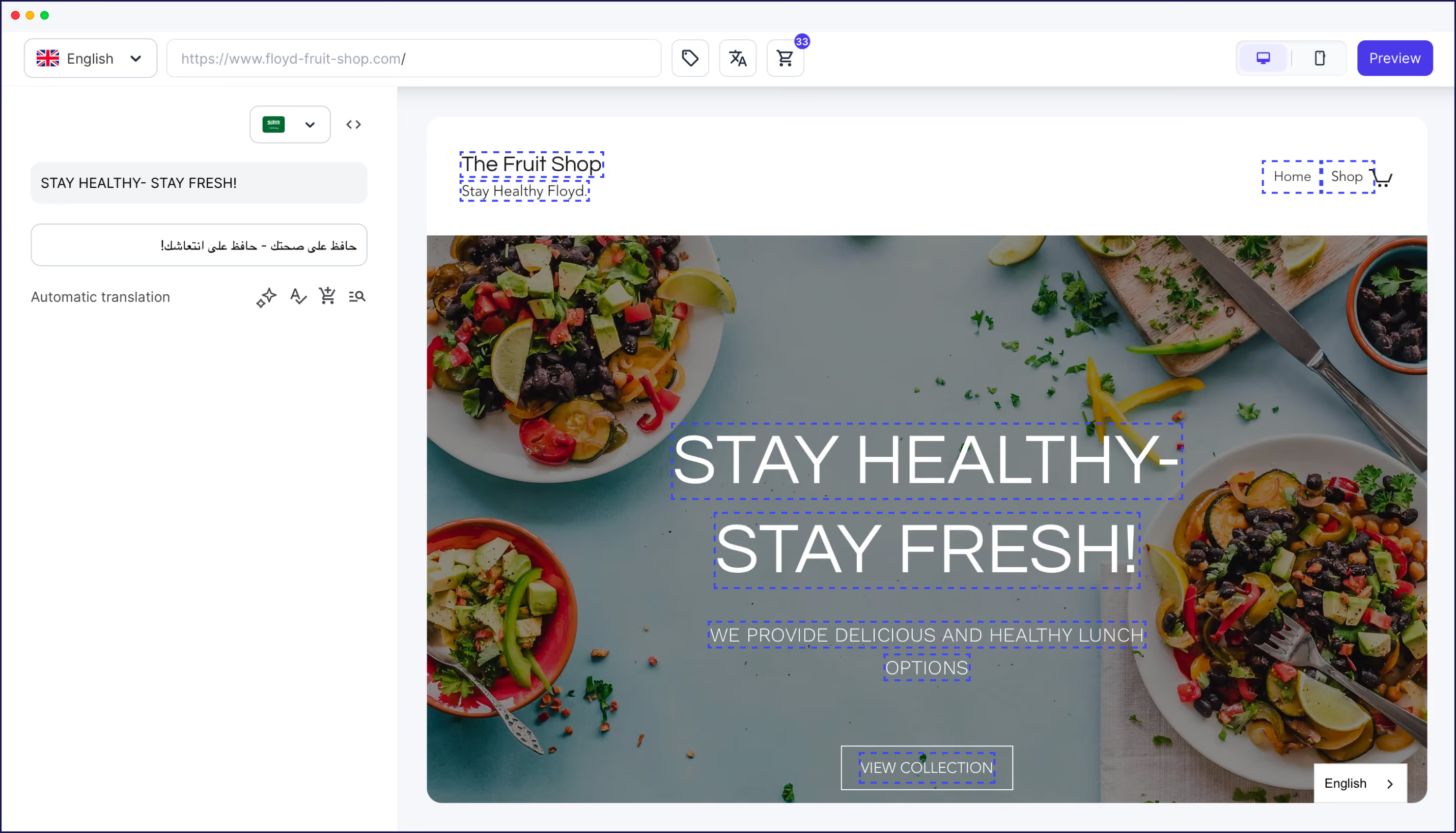
Weglot provides comprehensive functionality from the start, including complete WooCommerce integration. This includes automatic, full product catalog translation as part of its first layer of AI translation.
Unlike other plugins, you get the same quality as premium tiers. Weglot uses DeepL, Google Translate, Microsoft Translator for translations, followed by an AI Language Model which uses Open AI and Gemini for a more accurate brand voice.
When you activate Weglot, it detects and translates your existing products, including variations, attributes, and widgets – there’s no manual intervention needed. Your cart and checkout pages get translation too, although like our other featured plugins, you’ll need a separate currency converter.
Our free tier also comes with Weglot’s premium usability. A visual editing interface lets you work with translations within a live context of the page. Every site gets proper SEO implementation suitable for a multilingual store, including automatic hreflang tags, translated metadata, and the right structure and hierarchy behind the scenes.
For a company such as French skincare brand Polaar, this ease of use and behind-the-scenes work really boosts efficiency.

After understanding Weglot’s workflow, they found they could scale and grow by adding another language with minimal effort. By translating their site into English, US traffic rose from 6-18%, increasing total revenue from 5-17%.
Starting with Weglot’s free tier: Using the free tier’s 2,000 words and single language translation, you can learn how Weglot works for your WooCommerce store. When you’re ready to scale, paid plans start at $150/year (Starter) and provide additional languages, higher word limits, and team collaboration features. And the total setup – including full site translation – takes less than 10 minutes. Here’s how!
Building a multilingual WooCommerce store can be faster than implementing premium tools and services – having fewer choices at the start often speeds things up.
Note: You’ll need a domain name and hosting to give your shop a space on the web. Check our list of technology partners for approved options.
Log into your WordPress site and navigate to Plugins > Add New. Search for WooCommerce. Click the Install Now button. After a few moments, click the Activate button. WooCommerce is now ready.

Complete the WooCommerce onboarding wizard to configure your store settings. Then add the products you want to sell through Products > Add new product.

Choose a suitable theme for your site. While premium themes offer more options, the WordPress Theme Directory has free themes suitable for ecommerce.

We’d recommend the official WooCommerce theme, Storefront. It has a familiar look and layout that customers recognize, which is positive for quick deployment.

Design your site with future languages in mind. Follow multi-language design principles for your primary locale, including design that focuses on localization styling and adaptation. Consider how your store’s product pages work and whether you can adapt page information and layout to match your needs.
Install the Weglot plugin from the WordPress plugin directory. Sign up for a Weglot account to receive your API key. Add this key to the Weglot settings in your WordPress dashboard.
Automatic translation happens immediately – just choose your destination language:
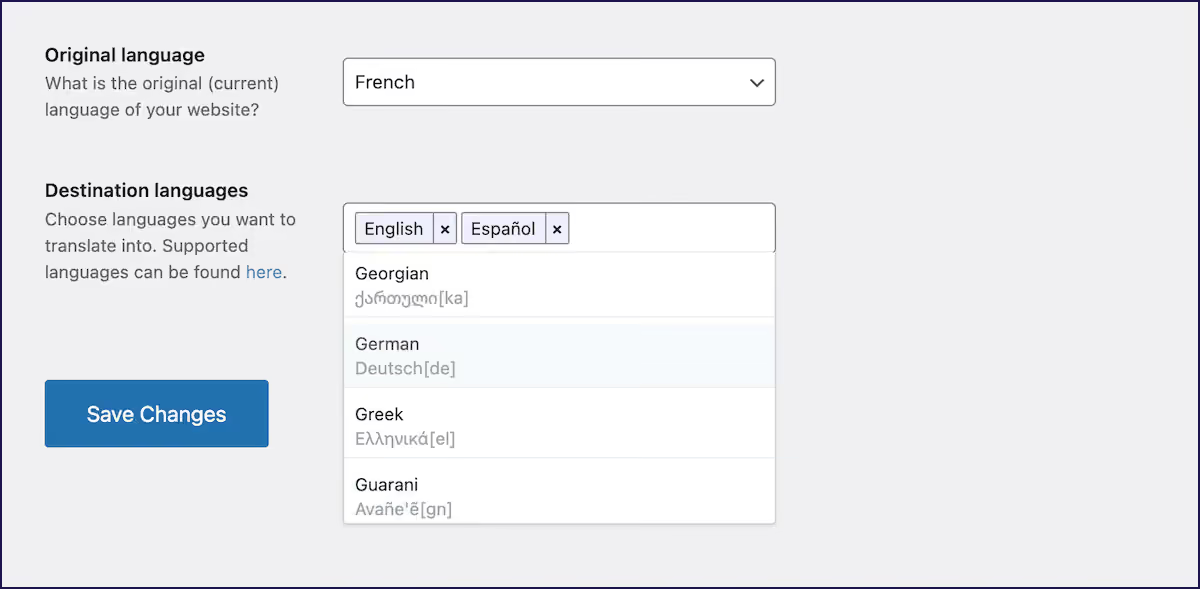
Once connected, Weglot detects and translates your existing products, pages, and content. Your entire catalog gets a first layer of AI translation without manual work.

As we’ve mentioned, Weglot handles complex tasks behind the scenes. It hosts your translated content under subdirectories and automatically adds hreflang tags for proper SEO.
Prioritize high-traffic pages and popular products for manual review using Weglot's editing interfaces – the Translation List and the Visual Editor.

Use the Page Views screen within Weglot to identify which pages receive the most traffic per language.

Add a language switcher so visitors can choose their preferred language. This small menu appears on the front end of your site.

Display country and locale names in the target language for usability. Flag icons can also help visitors find their language quickly, but always include country names alongside them so screen readers can pick them up and your site remains accessible for all.
You can customize your switcher design within the Weglot dashboard using the built-in advanced options, preset templates, or custom CSS:

After setup, verify everything works. Test checkout processes in each language, and payment gateway functionality across all regions. Monitor conversion rates and adjust content based on regional performance metrics.
This should see you through your first quarter. At some point, you may need premium themes, plugins, and Weglot’s higher tiers. But those are all good signs, as it means your store is growing!
Starting with Weglot’s free tier makes complete sense for most WooCommerce stores with international ambition. It provides essential functionality without upfront investment, letting you start selling immediately. You can then scale up as your business grows, and with predictable costs once you reach pricing tiers, you can accurately measure your ROI.
The SEO benefits alone are worth considering. Weglot automatically handles all technical SEO, on every page, in every language. These requirements would otherwise need developer time or manual implementation.
For those launching new products on a regular basis, a manual approach to multilingual WooCommerce simply doesn’t scale, with dynamic, automated translation the perfect solution.
If you’re ready to see how AI-powered translation works for your WooCommerce store, try Weglot’s 14-day free trial and go multilingual in less than five minutes.

We’ll get your first languages live. You decide how far you want to go. Try Weglot for free today.
Trusted by 70,000+ global brands





Weglot is tested and trusted by brands worldwide since 2016. Join them today.


The best way to understand the power of Weglot is to see it for yourself. Test it for free and without any engagement.
A demo website is available in your dashboard if you’re not ready to connect your website yet.


Yes. With Weglot, 100% of the content on your WooCommerce store will be detected and translated. This also goes for content that isn’t visible, such as metadata.
Yes! Weglot has a forever free plan for small websites that require 1 additional language and have up to 2,000 words on their website. This plan is ideal for small business services, portfolios, design studios, MVP or landing-page-only sites, NGOs and more.
Check out all our paid plans to learn more about word and language limits. Weglot also has a 14-day free trial, no credit card required.
Weglot, available through the official WooCommerce Extensions Marketplace, translates the entirety of your WooCommerce store, including the checkout, cart, and user emails (through compatibility with 3rd-party email providers like Mailerlite).
For a fully translated checkout and cart, Weglot does this automatically with AI translation as soon as you’ve completed the 4-step no-code integration steps.
There are four choices to choose from when it comes to URL structure for your multilingual WooCommerce store. The pros and cons of each differ.
What are Country-Code Top-Level Domains (ccTLDs)?
ccTLDs are country-specific domains like example.fr or example.de. They send a strong geo-targeting signal to search engines, helping your site rank locally and build user trust.
Pros:
Cons:
Example:
Airbnb uses ccTLDs such as airbnb.fr for visitors in France.
What are Subdomains?
Subdomains look like fr.example.com or de.example.com. They allow separate language versions while keeping a unified brand.
Pros:
Cons:
Example:
Wikipedia uses subdomains (e.g., de.wikipedia.org) for localized content.
What are Subdirectories?
Subdirectories use a single main domain with language folders like example.com/fr/. They are simple to manage and help share link authority across all versions.
Pros:
Cons:
Example:
Nike uses subdirectories (nike.com/fr/) to serve content by language.
What about URL Parameters?
URL parameters appear as query strings (e.g.,?lang=fr or ?sort=price-ascending). They’re flexible but often cause SEO issues like duplicate content or wasted crawl budget.
Pros:
Cons:
Example:
Amazon uses parameters to filter results and personalize shopping (e.g. sort=price-ascending).
For ease of use and overall SEO benefits, subdirectories and subdomains are considered the best option for improved ranking on AI search and within international searches.
Using a WooCommerce translation plugin like Weglot means you can choose to rely on AI translation, create your custom AI Translation Model which improves the accuracy of your translations based on your brand guidelines and prompts, or add human editors to key pages.
The best choice is to use a translation plugin that gives you the option to use a combination of both.
Yes, Weglot is fully compatible with WooCommerce, so you can have a completely translated ecommerce store from product pages to your checkout.
Yes. Weglot translates your entire WooCommerce buyer journey - from product pages all the way through to checkout - ensuring your customers can fully understand every step of their purchase.
With Weglot, there’s no difference in translation quality between the free and paid plans. Weglot automatically uses AI translation from leading providers like DeepL and Google Translate.
You can then enhance translation accuracy even further by creating your own custom AI Translation Model, powered by Gemini and OpenAI, which learns from your rules, glossary, and edits to refine results over time.
Weglot handles all your technical SEO. With automatically created language subdirectories (subdomains also available), translated metadata, hreflang tag implementation, and translated URLs on Pro plans and above.
Weglot is also compatible with all WordPress SEO plugins, including Yoast and RankMath.
Weglot automatically creates language subdomains or subdirectories (depending on your preference), translates metadata, and offers the option to translate your URLs on Pro plans and above. Another complex element that is automatically handled is the implementation of hreflang tags, which inform SEO bots about the language your pages are targeting.
Weglot integrates seamlessly with both WordPress and WooCommerce, giving you an instantly translated website thanks to AI translation. Weglot detects and translates 100% of the content on your site, including dynamic content.