

Try Weglot for free


If you’ve found that your expectations for adding translation to WordPress don’t match the reality, you’re not alone! Maybe you’ve gone down the manual route and found timescales and costs mounting. Or you’ve already tried a translation plugin, only to find it affected site performance, with mounting hidden costs.
The key to running a successful multilingual site lies in the detail. Your site will need a solution to match its own needs, which won’t necessarily be the best known or best selling software. And simply comparing plugin feature lists won’t help you guard against future problems as your site scales.
From manual translation considerations to an in-depth study of four leading translation tools, we’ve gone beyond the basics to look at performance, hidden costs, and scaling capabilities. By the end, you’ll be able to add translations with confidence, safe in the knowledge that you’ve a solution for the long-term.
It’s entirely possible to manually translate a whole site. Many site owners avoid plugins entirely by duplicating pages, spinning up multisite networks, or hacking theme files. This works for static sites under 10 pages where content changes rarely.
You keep full control and there are no hidden fees, but you’ll need to undertake a mountain of manual labor. Those intent on manual translations also need to factor in costs of around €0.07-0.22 per word – approximately €14,000 minimum for 200K words in one language. The manual approach simply doesn’t scale for the majority of sites, with machine translation a logical option.
Trust machine translation as a starting point. It’s the only way to achieve scale, but never publish without human review when quality and nuance count.
For product specifications, technical documentation, or simple blog posts, machine translation can achieve around 85% reliability, especially with DeepL in European languages. However, for marketing content – think homepage hero text or ad copy – expect to rework around 30% of machine output to preserve brand tone and avoid awkwardness.

The best workflow is a hybrid one. Use machine translation for speed, then manually edit your pages. You can check how much AI and manual translation your site is likely to need via our handy AI Translation Checker.
First up – with the right tool in your tech stack, full site translation takes less than five minutes. All plugins handle full-site translation differently but this is how to go about it with Weglot.

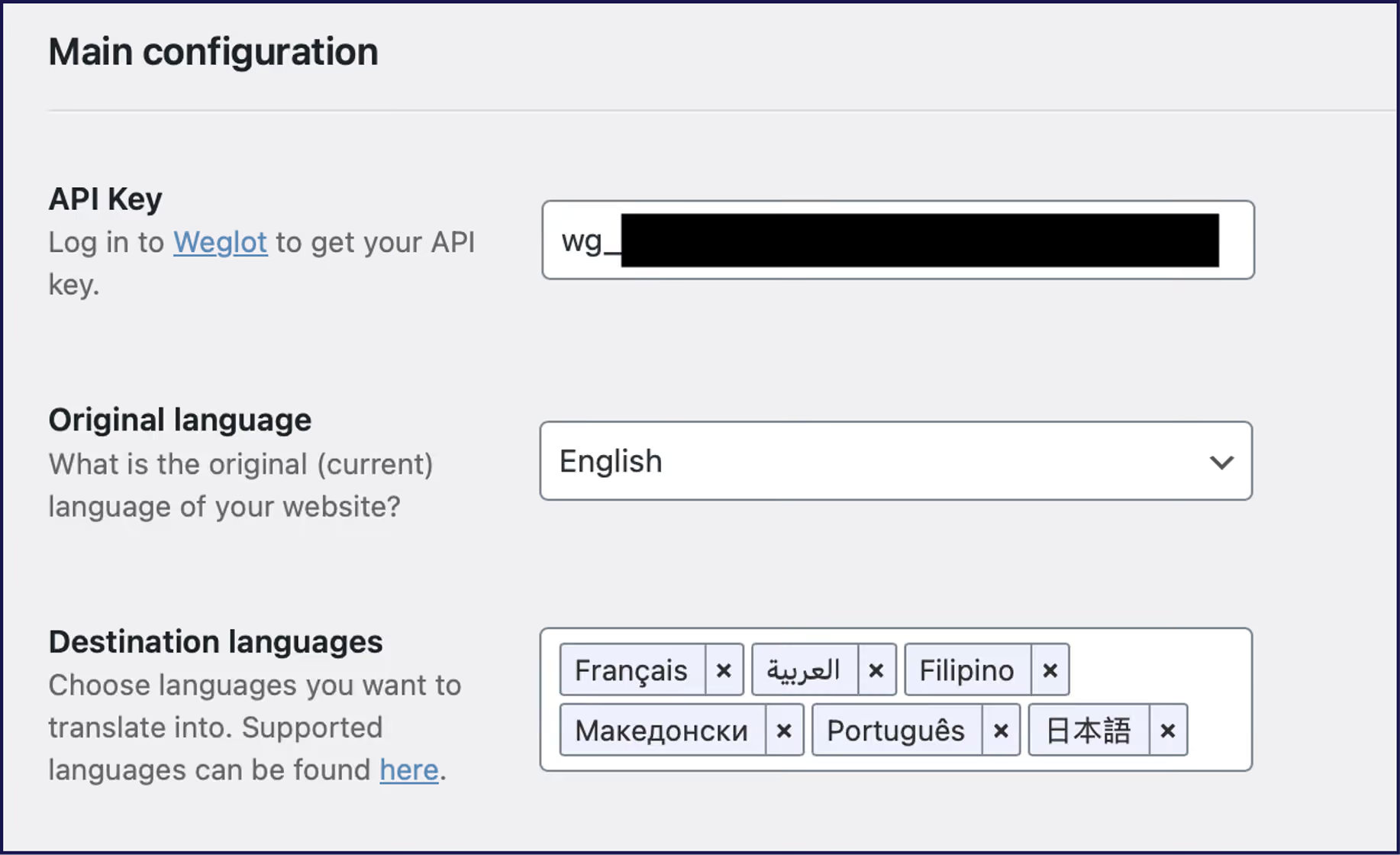

You’ll instantly have an AI-translated site. For translation accuracy, you can review and refine translations using a frontend Visual Editor and create a glossary of rules for simple translation management across your site. Or, create your custom AI Language Model where the AI translations on your site improve based on your glossary, brand guidelines, and specific rules. What’s more, a customizable language switcher is also added to your site, letting users switch languages with a click.
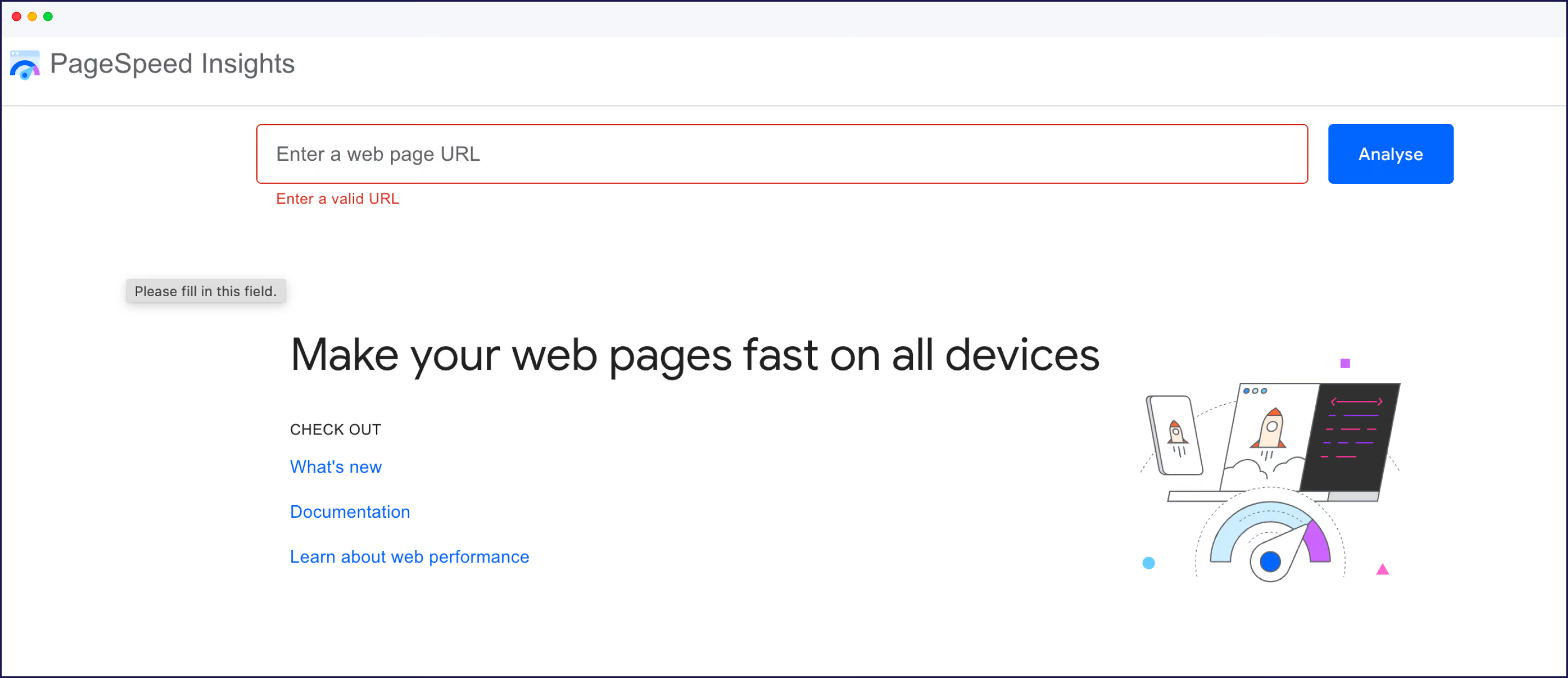
Before going all-in with any translation plugin, run PageSpeed Insights on a few key pages. Note your baseline metrics, install your chosen plugin, translate those pages, and test again. If you see a significant slowdown (LCP increasing by >1 second), consider a different solution.
Focus on:
Test mobile performance specifically. It's stricter and more representative of real-world usage. If you're using a page builder or WooCommerce, test those complex pages rather than simple blog posts to see the real performance impact.
Most importantly, test with your actual caching setup active. A plugin that seems slow without caching might perform perfectly fine with WP Rocket or Cloudflare enabled.
Once you've tested translation impact on performance, the next critical factor is caching compatibility – here's how the leading plugins stack up.
Now that you've seen the translation process in action, let's compare the leading plugins to find your best fit. Four major translation plugins dominate WordPress discussions – WPML, TranslatePress, Polylang, and Weglot – but their approaches diverge the moment you explore how and where your translations are stored.
WPML, TranslatePress, and Polylang save translations in your WordPress database. This gives you total control, but, as your site grows, WPML and TranslatePress’ database tables grow and every extra query can drag down performance. Polylang creates a new post every time you translate a native one, which removes the above string bloat but can lead to an unwieldy backend.
Weglot, however, connects your site to its remote API, translating content off-site and delivering results from the cloud. This translation method preserves site speed, but ties your translations to an external subscription.

WPML has been built for large, complex multilingual sites that need granular control, deep theme/plugin integration, and workflow management. Ideal for agencies or enterprise installs where accuracy and permissioning matter.
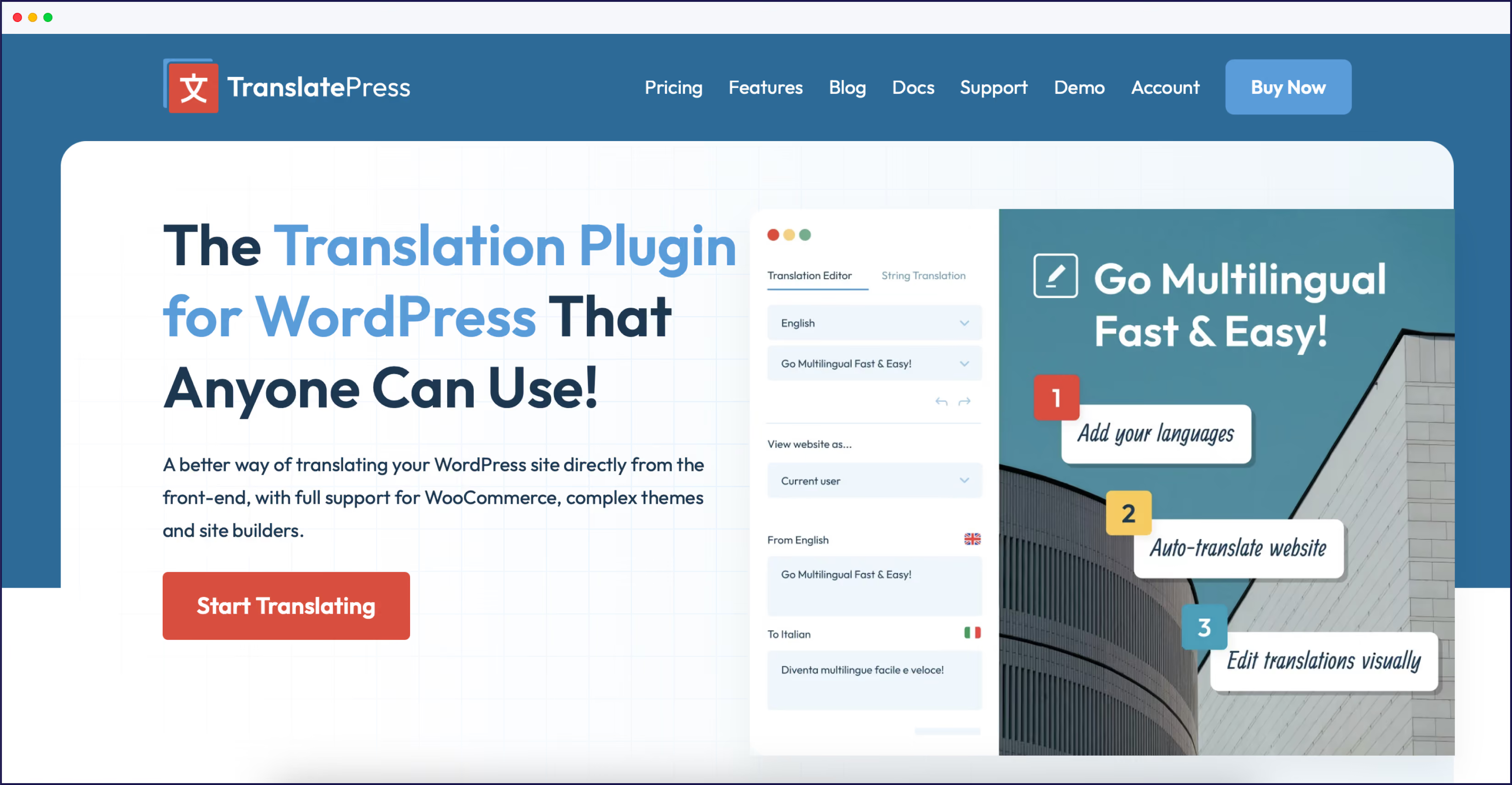
TranslatePress excels for users who crave a visual, front-end editing experience. It’s best for marketers, freelancers, or small business owners prioritizing content quality and ease of use.
Polylang is a great option for smaller sites with a low update frequency, and for those who don’t mind some manual configuration.
Weglot is a go-to for sites of all sizes, avoiding performance issues by hosting your translations in the cloud. It’s the ideal WordPress translation plugin for content-driven businesses, with excellent integrations and time-saving automations.

For WPML, full WooCommerce support requires a paid WPML account. The free version limits WooCommerce integration, meaning full product and checkout translations, inventory syncing, and automatic emails aren’t included. Manual translation of basic product pages is possible, but most store owners will hit limitations quickly.
The free version of TranslatePress supports WooCommerce and allows you to translate any frontend content—including products, cart, and checkout—using a visual editor. You can translate all strings manually or machine translate up to 500,000 characters with Google Translate integration. The main limit is that you can only add one extra language for free.
Polylang’s free version allows for manual translations only. To automate machine translations, you’ll need a third-party plugin. Polylang’s Pro tier at €99/year also won’t automate translations across the whole of WooCommerce, picking up page/post content but missing dynamically generated or hardcoded strings, plus shortcodes and forms. To automate these translations and sync stock without manual intervention, you’ll need the Polylang for WooCommerce extension, at an additional €99/year.
Weglot’s free tier gives you full WooCommerce integration, but limits you to one translated language and 2,000 words. Full WooCommerce translations are automatic and use leading AI translation engines. You also get full access to the Weglot Dashboard to manage and edit all WooCommerce content.
None of these plugins handle live currency conversion or VAT rules. They let you translate symbols or static labels, but true multi-currency requires plugins like WooCommerce Multi-Currency, not a translation plugin itself, so factor this into your project planning.
Handling 500+ pages exposes each translation plugin’s true workflow, bottlenecks, and scalability. WPML, TranslatePress, and Polylang store every translation in your WordPress database. This brings granular control but also translation debt – as content scales, you face increasing admin slowdowns and inevitable context switching.
WPML excels at deep backend integration, translating posts, pages, custom fields, taxonomies, and WooCommerce products, but large sites may suffer from slow admin screens and complex maintenance in terms of translation management.
TranslatePress lets you edit visually, in context, but with hundreds of pages, recurring strings across widgets create fragmentation, making global changes lengthy. Polylang is lightweight on the front end, but every translation creates a new post or page, making database management bulky.
Weglot is API-based, so your database stays lean, translation edits are consolidated, and scaling to hundreds of pages remains fast.
As your multilingual site grows, you'll need to manage translator access efficiently while maintaining security. Each plugin handles this differently.
WPML offers the most granular control through its Translation Management module. Create custom translator roles, assign specific languages to users, and restrict access by content type. Translators work through a dedicated interface without accessing WordPress admin.
TranslatePress keeps it simple – any Contributor-level user can translate via the frontend editor. The Business license adds a Translator Accounts add-on for dedicated translator users who bypass the WordPress backend entirely.
Polylang's free version uses standard WordPress roles – anyone who can edit posts can translate them. The Pro tier adds language-specific permissions, though translators still need backend access to create translated posts.
Weglot manages everything through its external dashboard. You can invite translators, assign languages, and track activity, all without granting WordPress access. This cloud-based approach eliminates security concerns and simplifies onboarding since translators never touch your WordPress installation.
It’s important to consider how your SEO can be affected by translations, as it needs to be handled properly. Here’s an overview of how these plugins approach it, but you can read more in our article on WordPress translations and SEO.
WPML offers three URL structures (subdirectories, subdomains, or query parameters) and auto-generates hreflang tags, but requires manual setup for custom content types.
TranslatePress requires the paid SEO Pack Add-On for proper optimization. Uses subdirectories only and handles hreflang automatically once configured.
Polylang creates separate pages per language with clean URLs but requires manual hreflang setup to avoid duplicate content penalties.
Weglot uses subdirectories by default (but you can also choose subdomains) and automatically handles all SEO requirements – hreflang tags, sitemaps, and canonical URLs – without configuration.
Beyond the timescale and cost challenges of manual translation, every dedicated plugin brings its own workflow and trade-offs. Across posts, products, custom fields, and WooCommerce content, finding the right fit hinges on balancing automation with manual review, and matching your site-specific needs over feature sets.
A little research now will save any heartache in the long term, so run real-world speed tests, and plan for scaling before you commit to any subscription.
If you’re looking for a tool built for future growth and long-term flexibility, start your free 14-day trial with Weglot.

We’ll get your first languages live. You decide how far you want to go. Try Weglot for free today.
Trusted by 70,000+ global brands





Weglot is tested and trusted by brands worldwide since 2016. Join them today.


The best way to understand the power of Weglot is to see it for yourself. Test it for free and without any engagement.
A demo website is available in your dashboard if you’re not ready to connect your website yet.


