

Try Weglot for free




If you’ve used Shopify’s Translate & Adapt before, you may relate to the feedback we often hear from store owners at Weglot. For many teams, the first language launch feels relatively straightforward, with familiar admin screens and built-in auto-translation helping get things started quickly.
Where challenges tend to appear is later on, as multilingual content grows and workflows become more complex. We’ve heard from teams who found themselves relying on more manual processes over time, struggling to keep translations aligned with their brand voice, or noticing that the on-site experience didn’t always feel fully adapted to each target market.
If you're here, you've probably hit one of those moments. This guide is going to cover the migration process from Translate and Adapt to Weglot, then finish up with some tasks to check off after everything is complete.
If you run Translate and Adapt on a small store with one target market, the experience is often straightforward. However, it's the constraints with Translate and Adapt that build up, even in simple situations (such as needing to add a third language as your business grows).
Shopify's system auto-translates into two languages, but every language beyond that means manual input for every string.
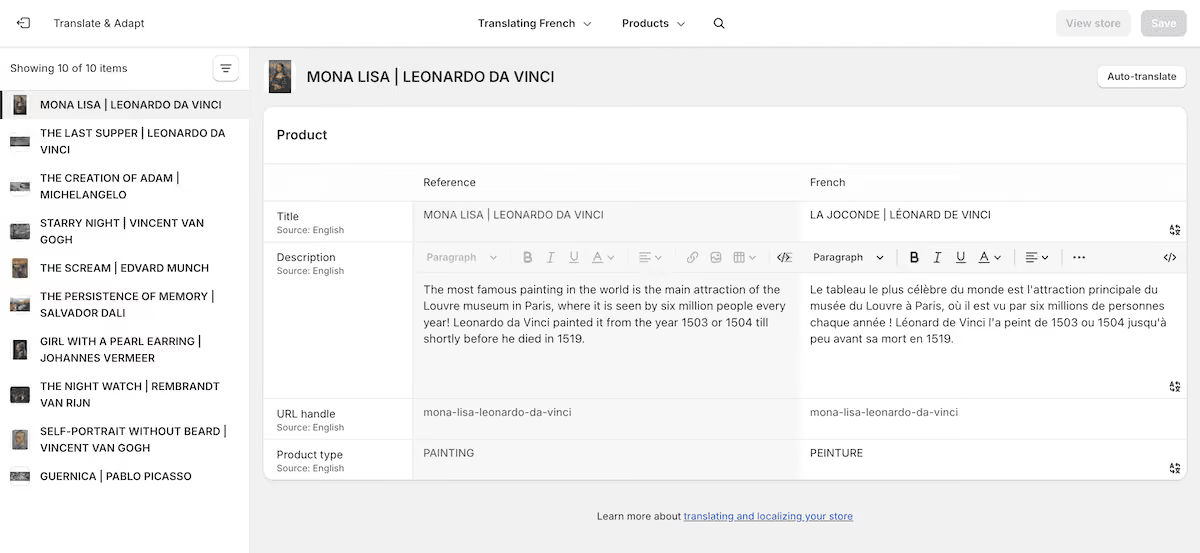
There's also an annual cap of 100 million characters for automatic translation, which sounds generous, but will probably not cover product lines in the thousands that refresh regularly.
Translate and Adapt also doesn’t give you any control over how your brand sounds in another language. The app uses Google Translate for automatic output (Note, Weglot also uses it as one of its machine translation providers, along with DeepL, Microsoft, OpenAI, and Gemini for improved quality). However, without refinement and rules, it treats every word and phrase the same way, leading to your brand not always reflecting the same tone of voice across markets.
There are frustrations around the work involved in translating content too. One growing European fashion brand noted how there's a content visibility problem:
"…you create a new page, specify all the content per language, and you don't see anything until it's live. If you delete a bunch of text in the app, it can cause a complete error, and everything will stop. Switching between the app and Shopify always causes problems…"
In short, Translate and Adapt doesn't auto-detect new or updated content. This means every addition or update adds to the translation backlog you have to manage by hand. What's more, third-party app content often falls outside its coverage entirely because those apps don't use Shopify's translatable resource types. This could be reviews, loyalty widgets, shipping calculators, form fields, and many others.
The result is a multilingual store that looks translated until a customer reaches a section that isn't. Many times, this section is the checkout, which has a huge impact on your conversions.
Weglot starts at the architecture level to generate and build translations. In contrast, Translate and Adapt works within Shopify's own translation layer, so it can only see what its API exposes. Weglot reads your store's HTML directly. A by-product of this is dynamic content, third-party app interfaces, and checkout steps are all part of the same translation project rather than gaps you discover later.
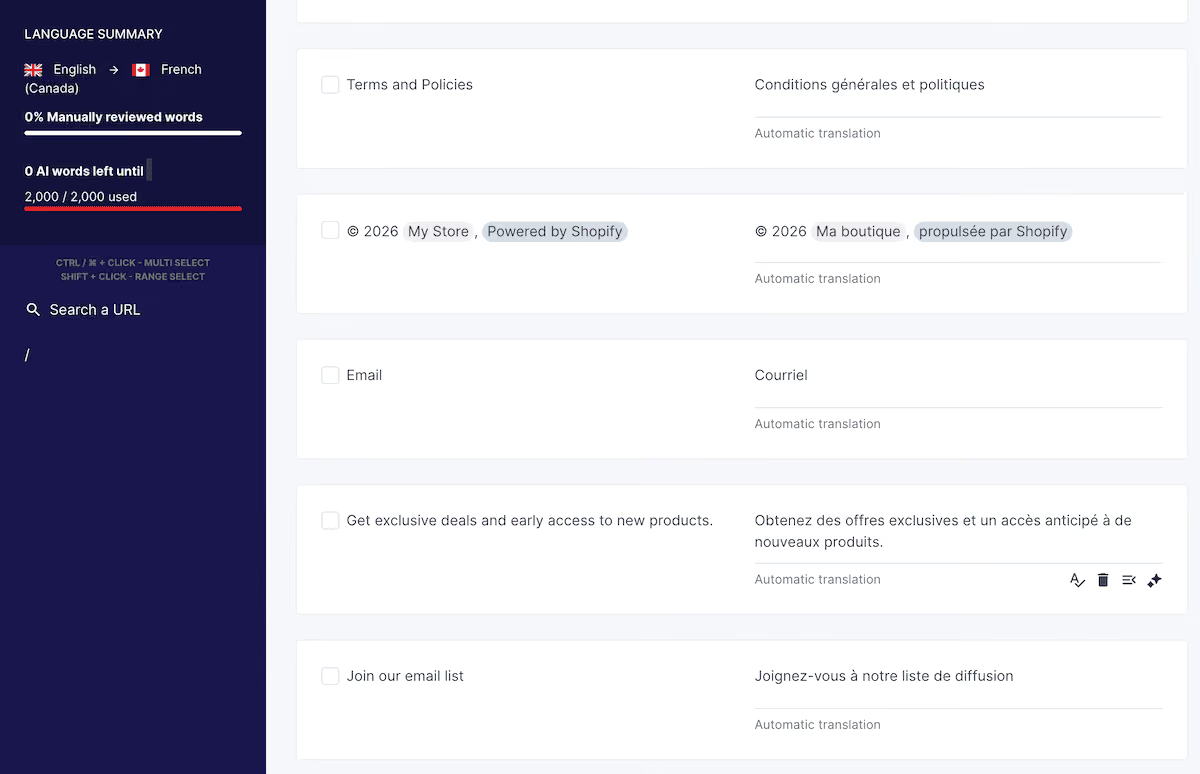
However, if your translate your Shopify store with Weglot, it will:
Shopify-based home fragrance brand Volant had been expanding internationally through a slow and unscalable manual process of duplicating the entire store for each language. After switching to Weglot, they launched eleven markets and saw a 39% increase in international revenue alongside a boost in online visits.
"The core of our business is selling products by telling a compelling story and educating our audience. We believe we can do that more effectively by speaking the local language of the European market."
– Tobias Nervik, Co-Founder, Volant
The temptation before any migration is to start installing the new thing, but don't do that yet! There's one step that pays off later: exporting what you already have. Within Shopify, this is through the Settings > Languages screen, where you click Export.
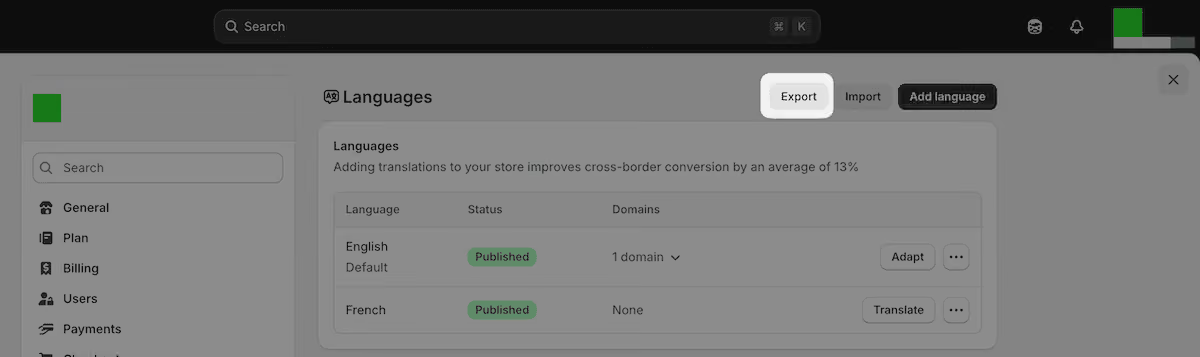
The CSV you get includes a status column for every piece of content: Translated, Outdated, or Untranslated. Any content that has been updated since the translation last ran will get the Outdated status. This gives you a clear picture of your current coverage and also tells you which work is worth bringing into Weglot for further refinement.
While you're in Translate and Adapt, Auto-translate all will overwrite manually edited translations without any warning. If you have spent time refining translations, export the CSV first. A string your team reviewed and corrected is worth keeping; everything else is often better rebuilt by Weglot.
Finally, note your current URL structure and check Google Search Console for any language-specific pages that have built up organic visibility. You'll want to monitor these after migration to check everything is working as you'd expect.
Once your translated Shopify content is nestled within a CSV file, you can look to add Weglot and begin the migration. To do this, navigate to Apps > Visit Shopify App Store. Here, search for Weglot and click Install to begin the installation within Shopify.
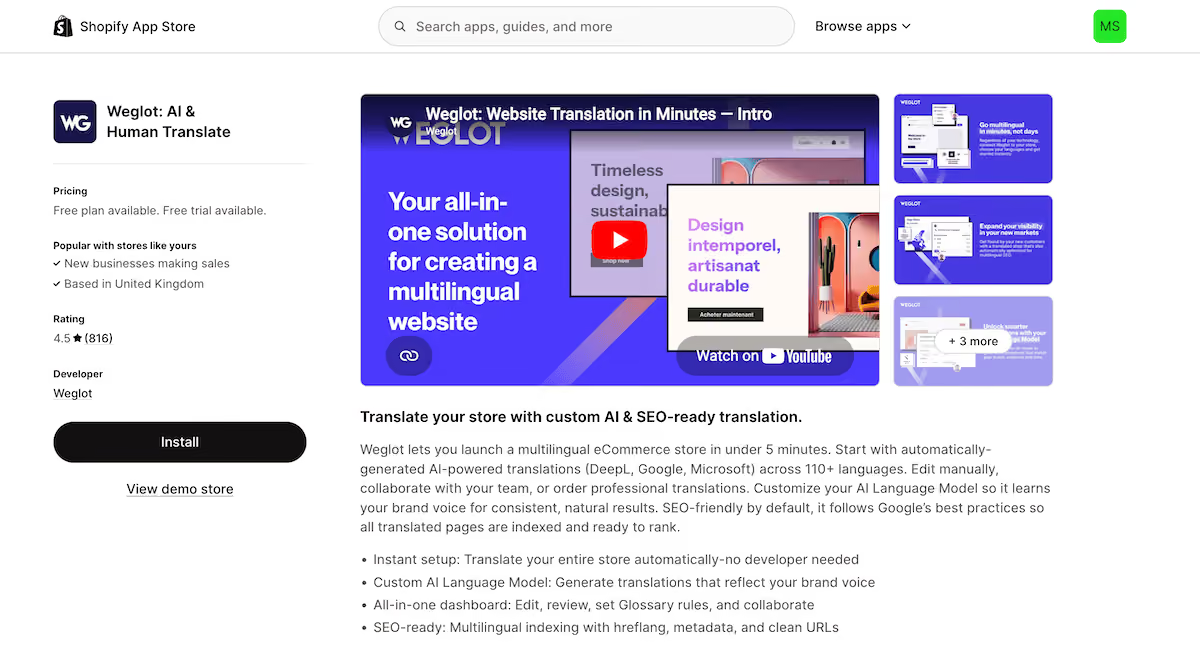
If you don't already, you'll need a Weglot account to log in and connect an existing project (or create a new one). If you're starting fresh, you get a 14-day free trial.
Following along with the Shopify integration guide, you'll want to pause at the point you activate Weglot to take one more action inside Shopify itself. Head to Settings > Languages, unpublish any additional languages that were running through Translate and Adapt, then delete them.
This is an important step because the two tools can't run together. Translate and Adapt writes to Shopify's Translations API, while Weglot translates your store's HTML at the front end. Running both at once creates conflicts in URL routing and content rendering that show up as broken or inconsistent language pages.
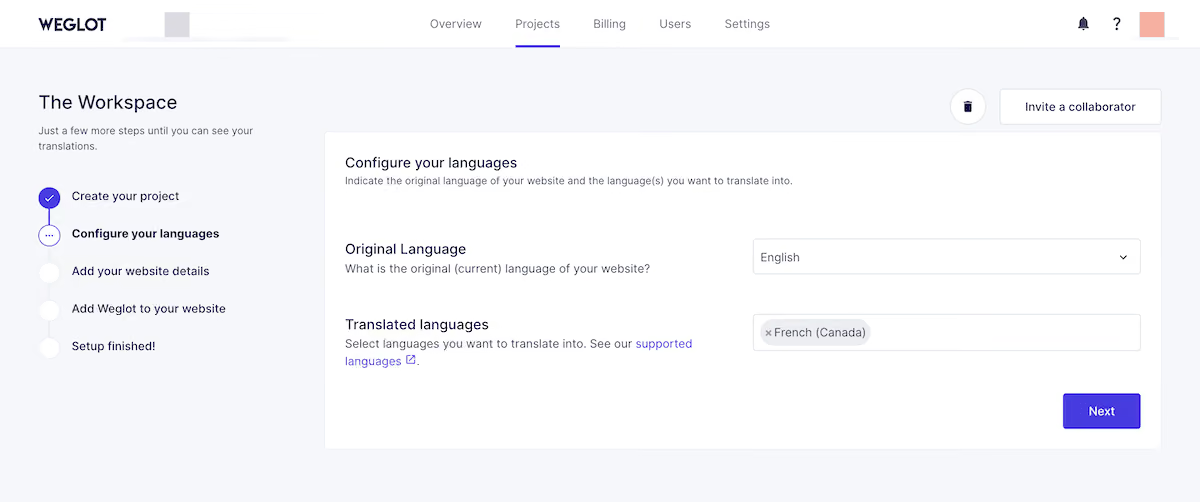
Once you complete this, return to Weglot and look at the configuration screen. You'll need to decide on three settings:
Specific to Shopify Markets, the URL routing requires an additional configuration step from Weglot's team. Once you complete the setup, drop us an email, and we'll make sure both systems work together correctly.
With languages and URL structure configured, click Activate within your Shopify theme editor and save. Weglot immediately scans your store and translates everything it finds.
This (of course) covers far more than Translate and Adapt's reach, but also includes a language switcher that appears on your storefront automatically which you can customize to match your store front.
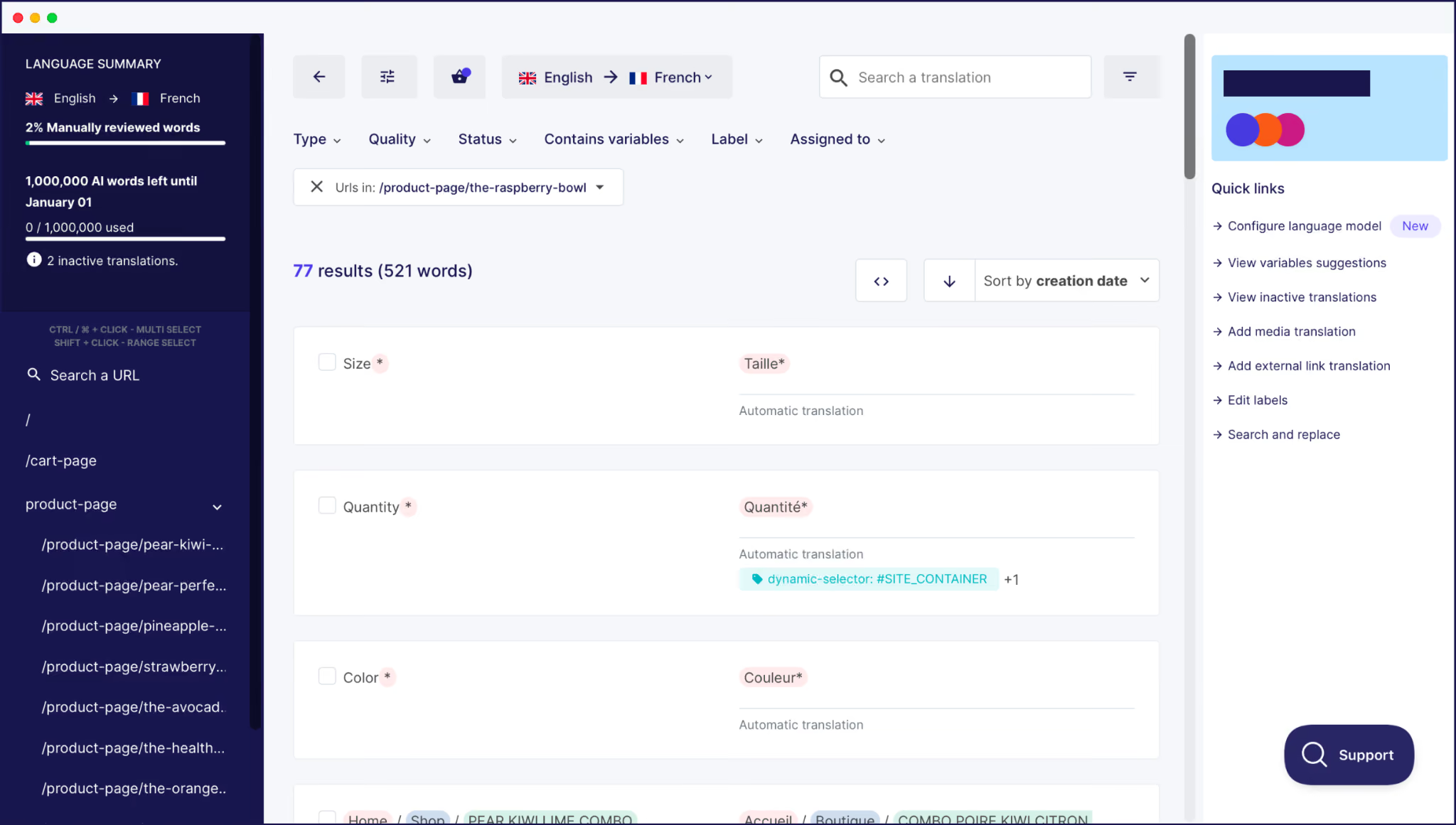
It’s at this point that you can visit your store and see that it’s now been translated instantly with Weglot.
If your beginning audit produced any translations worth keeping, this is the step to bring them across. From the Weglot Dashboard, go to your Translation List and use the import option to upload the CSV exported from Shopify.
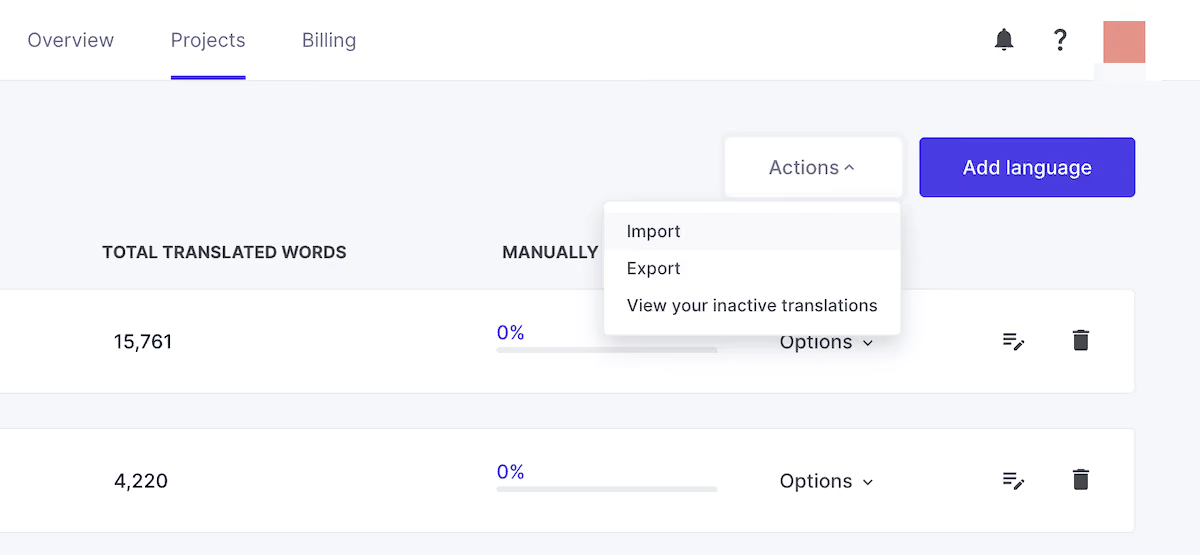
Weglot will run an initial translation match and apply imported content where it finds a corresponding string. It could be that not every translation will map cleanly, in which case, Weglot fills any gaps on an automatic basis (as with your other content).
If you’ve customized your AI Translation Model, you’ll already see a bigger difference in translation quality compared with the Google Translate strings from Translate and Adapt. Our advice is to use the import for 'reviewed and approved' content and let Weglot handle the rest.
At this point, your translations will be live! This means you can open the Visual Editor from your Weglot Dashboard to see how things look on the front end.
Here, work through the pages that carry the most commercial weight first, such as your home page, top product pages, and the checkout flow:
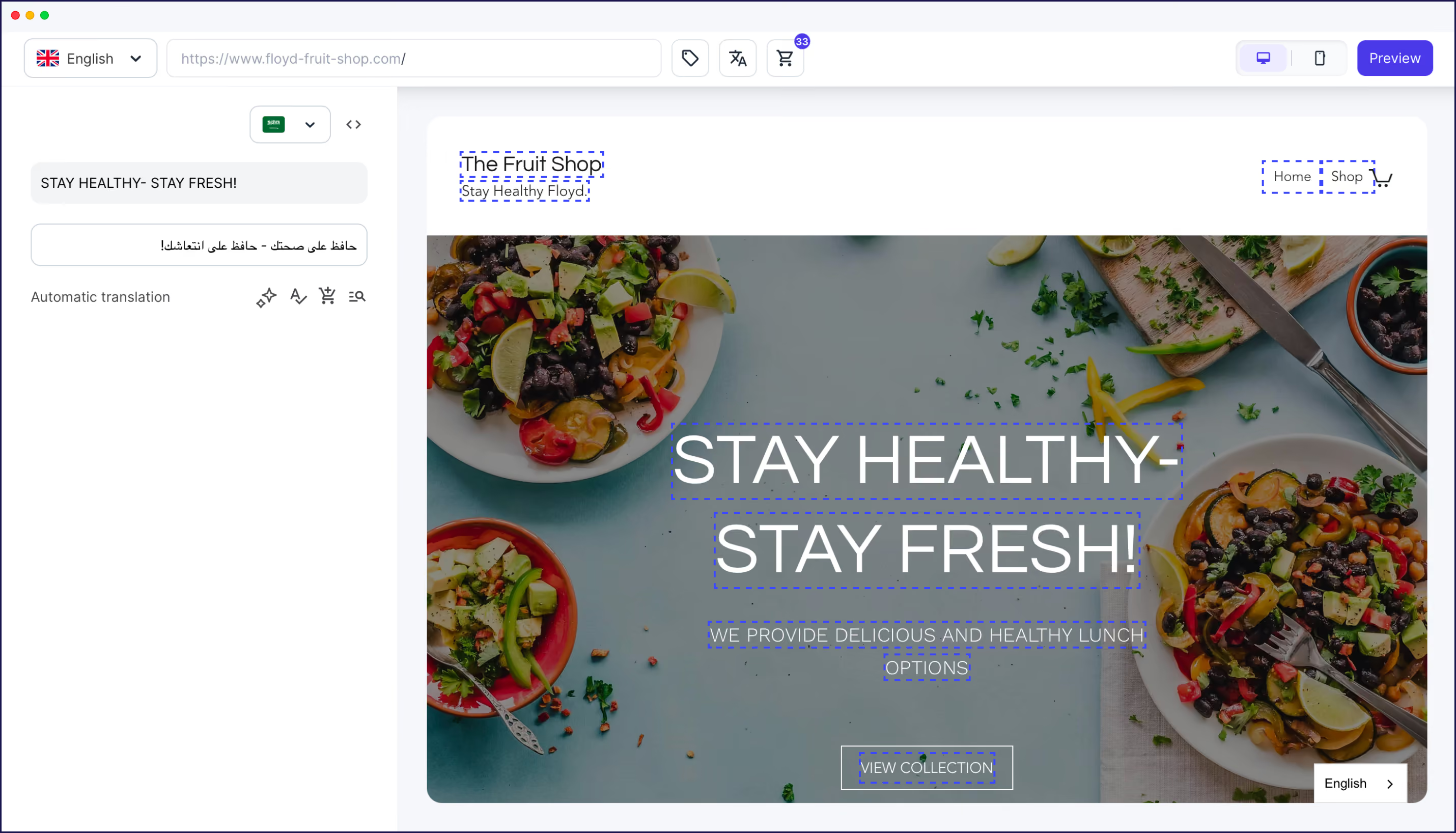
The context of your store's design will be key here because the Visual Editor can often surface UI issues, which means they'll be customer issues. For example, a product headline that reads well in English might be grammatically accurate in German but too long for the design space it sits in.
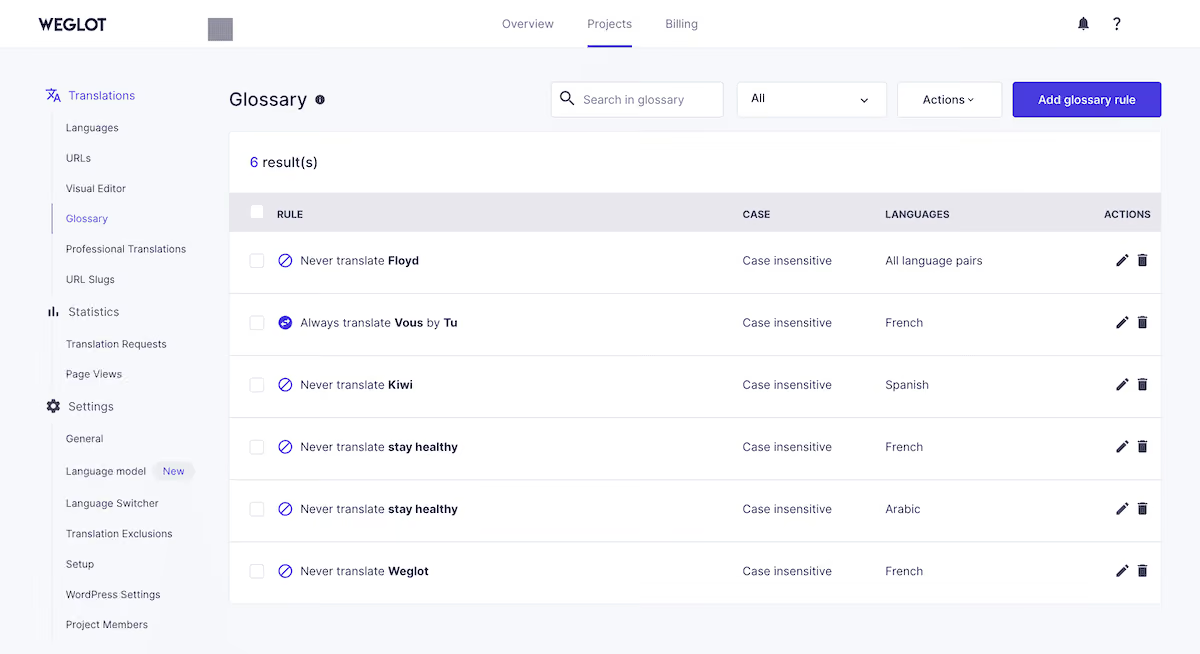
During this review, also look to set up your Glossary rules under Settings > Glossary:
These rules apply retroactively to existing translations and automatically to everything you publish in future. Defining them now means you're reducing correction work over time rather than reviewing the same terms on every new content batch.
Before you consider the migration complete, it's a good idea to test everything more thoroughly than you did earlier. Now, look to not only switch between languages using the language switcher, but run a test purchase in each target language.
This can help you confirm that the checkout, order confirmation, and any transactional notifications display correctly.
Pay attention to dynamic content here, such as live chat widgets, review apps, and some payment provider interfaces. These could load after the initial page render and may need dynamic translation rules configured in your Weglot Dashboard. If any content appears untranslated, this is where the fix happens.
Google Search Console is the first place to check immediately after the migration. You'll essentially want to check that your translated URLs are accumulating the same level of impressions as before (or better!).
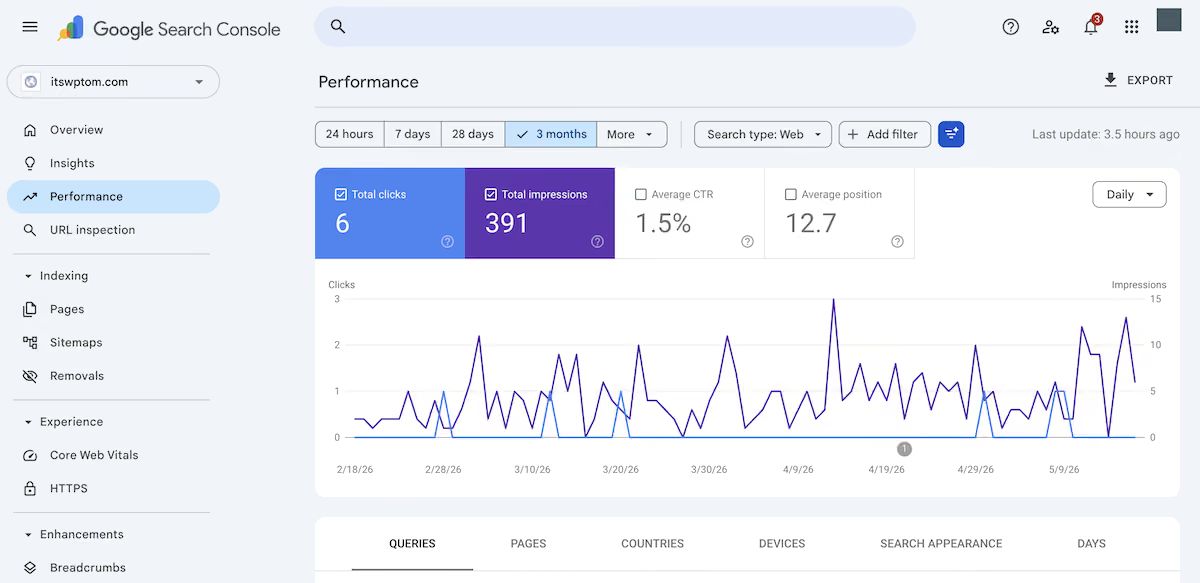
Here, check which language versions are being indexed. A correct setup associates each language version with its intended audience, which is what drives search visibility in each target market. Errors such as return tag mismatches or missing alternate URLs are worth resolving early before they affect how translated pages perform in search.
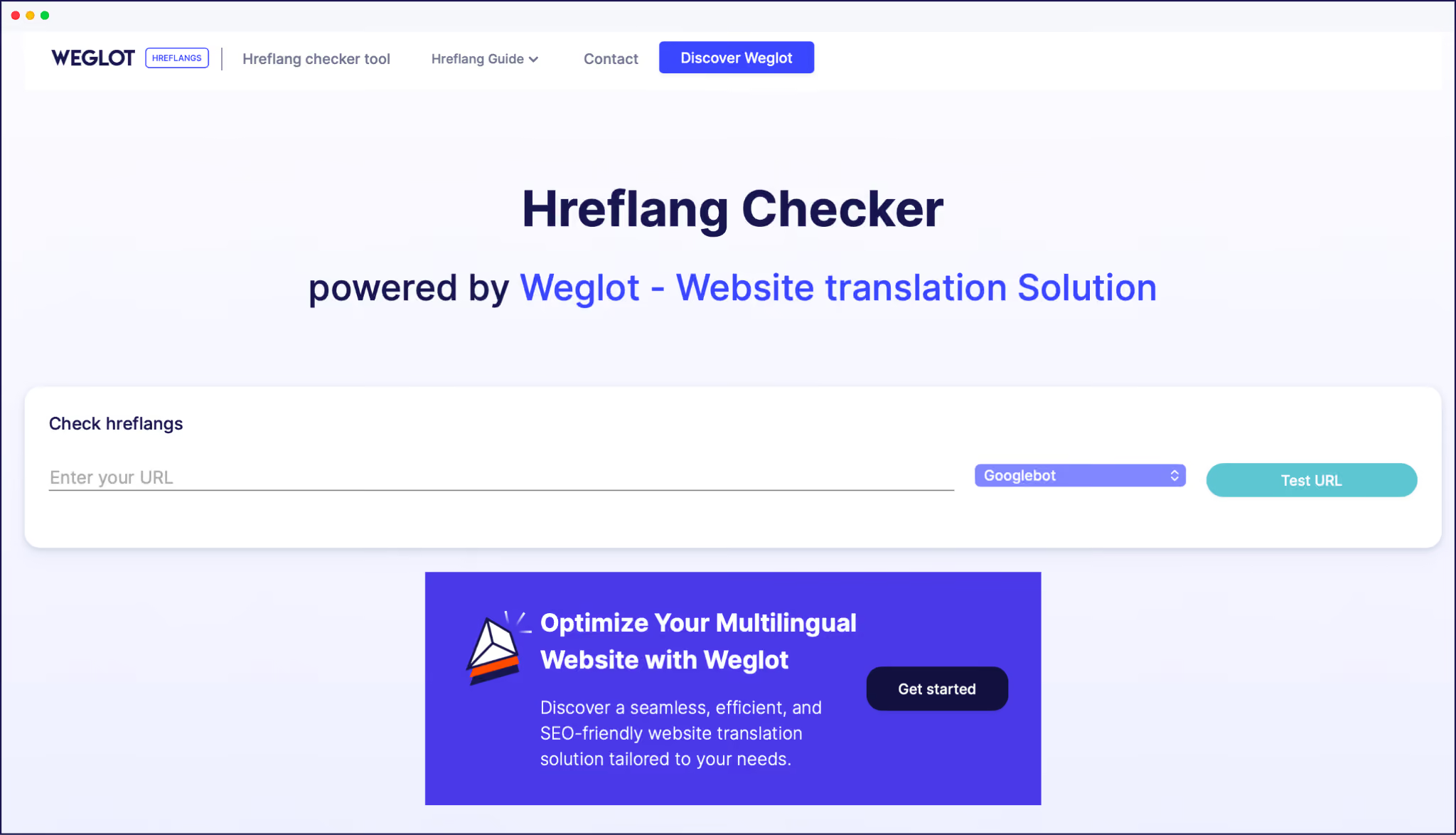
There's no report within Google Search Console to check whether hreflang implementation is valid, but Weglot's Hreflang Checker will be helpful:
Conversion rate and cart abandonment by language are the metrics that tell you whether translation quality is working for each market. A language version that drives traffic but converts below your primary language often points to a specific gap. This might be as simple as an unreviewed checkout string, though it could also be a CTA that lost its intent in translation and needs a professional translator.
Once the migration is complete, Weglot will handle any new or updated content automatically. Shopify fashion brand The Bradery translates over 500 new product descriptions every day and runs its entire translation workflow on this basis:
"…it takes us about ten minutes twice a week to double-check everything is running how we want it. Everything else is done by Weglot…"
– Adèle Aubry, The Bradery
If you want to take translation quality further once the foundation is in place, Weglot's AI Translation Model can be trained on your brand description, tone of voice, and custom rules you feed it. Translations the model produces are tagged with a GenAI label, which makes them easy to filter, review, and manage as a distinct group.
There's a version of migrating your Shopify translations that feels like a big project, then there's the version that most stores actually experience: a day's work to get Weglot live, a few days of review on the pages that matter most, and a translation workflow that largely runs itself after that.
If you've outgrown Translate and Adapt, Weglot replaces it with a setup that grows with your catalog.
The real change is with the ongoing workload, given that new content will translate automatically. What's more, the AI Translation Model gives you translations true to your brand voice, automatically, once configured.
If you're ready to move on from Translate and Adapt, take Weglot for a 14-day free trial, without the need for a credit card. Our support team is also available for any specific questions or guidance needed.

We’ll get your first languages live. You decide how far you want to go. Try Weglot for free today.
Trusted by 110,000+ global brands





Weglot is tested and trusted by brands worldwide since 2016. Join them today.


The best way to understand the power of Weglot is to see it for yourself. Test it for free and without any engagement.
A demo website is available in your dashboard if you’re not ready to connect your website yet.


Weglot uses the same subdirectory or subdomain URL structure your store already has, so search engines continue to find translated pages at the same paths. Hreflang tags are applied automatically from the moment Weglot goes live, so the correct signals that direct search engines are in place from day one.
Your existing translations remain in Shopify's database until you choose to delete them. Translations you don't import stay in Shopify but aren't served to visitors once Weglot is active.
No. Running both at once creates conflicts in URL routing and content rendering. The best approach is to unpublish and delete your Translate and Adapt languages from Settings > Languages before activating Weglot.
Weglot is fully compatible with Shopify Markets using a subdirectory integration that produces URLs in the format yourstore.com/{language}-{market}. For example, /fr-ca serves French content for the Canadian market. However, you'll need Weglot to carry out some additional configuration to enable both systems to work together.
Installation and the first translation run take about ten minutes for most stores. The audit, import, and priority page review depend on the size of your catalog and how much existing translation work you want to carry across. Most stores can be live on Weglot the same day.


