Try Weglot for free




Polylang is a popular WordPress plugin that lets you translate your content manually. It works well for teams with dedicated translators and time to manage the translation process.
But manual-heavy workflows can make it incredibly time-consuming to translate large, complex sites at scale.
If you’ve started pushing Polylang to its limits, it could be time to upgrade to an AI-powered multilingual WordPress plugin like Weglot. Changing plugins is simple, and you’ll probably find that translations are faster, more accurate, and easier to manage.
In this article, you’ll learn what makes Weglot the right choice for your site, how to quickly migrate your translations, and what to do once you’ve migrated.
While Polylang provides a structured framework for managing translations within WordPress, Weglot starts from a different premise. Rather than expecting you to add your own translations, it automatically translates your content and gives you tools to refine the results.
Here are some of the benefits you can expect when migrating to Weglot:
Improvements in translations, site speed, and SEO often lead to measurable business outcomes. For example, ecommerce brand Volant used Weglot to translate a 100,000-word website into 9 languages, resulting in a 2.4-times increase in online visits and 39% higher international revenue.
Although there’s no one-click way to migrate from Polylang to Weglot, the process is simple enough for anyone to complete without technical knowledge.
Here’s what migration looks like step by step.
Start by exporting your existing Polylang translations so you can import them into Weglot later and avoid losing your previous work.
If you’re using Polylang Pro, you can export translations as an XLIFF file. Head to Pages > All pages and select all the translated pages you want to export.
Click Translate from the Bulk actions dropdown, click Apply, choose the Xliff 2.0 format, and then Submit.
You’ll also want to export any glossary rules you’ve created in DeepL for use with Polylang Pro if you plan to carry these into Weglot. You can do so in the web translator and the desktop app.
Removing Polylang from your WordPress site will avoid conflicts with the translations and your URL structure once you switch to Weglot.
Here’s how to do it:
Do a quick manual check of your website to confirm it’s loading correctly and no Polylang code is still active.
With Polylang removed, you’re ready to set up Weglot.
Find it in your WordPress admin by navigating to Plugins > Add New. Search for “Weglot”, which looks like the following:
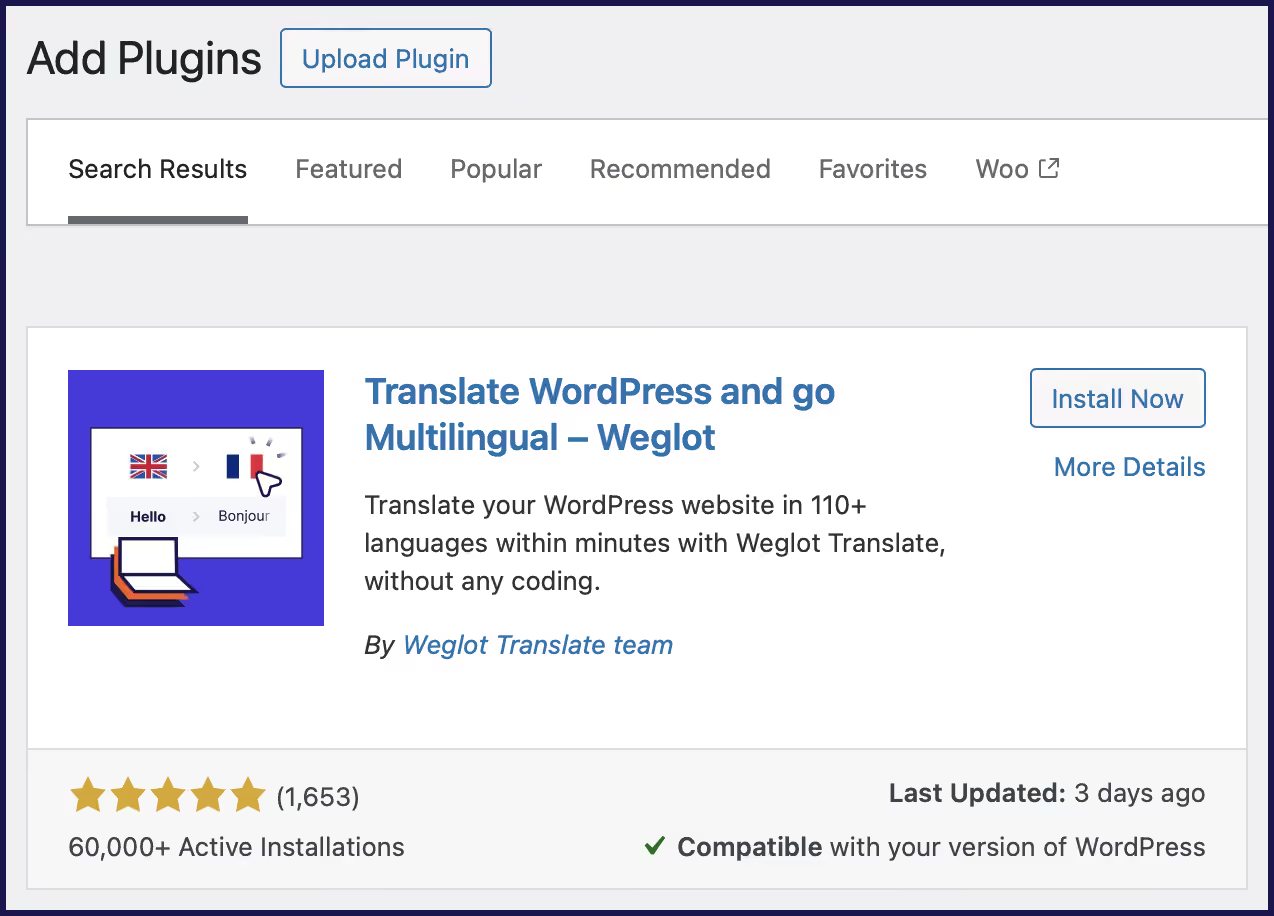
Install and activate the plugin. Then, open Weglot to create your account and choose a plan that matches your site’s word count and language requirements.
Copy your API key, then head back to your WordPress admin and add it to the Weglot plugin’s settings panel. It looks like this:
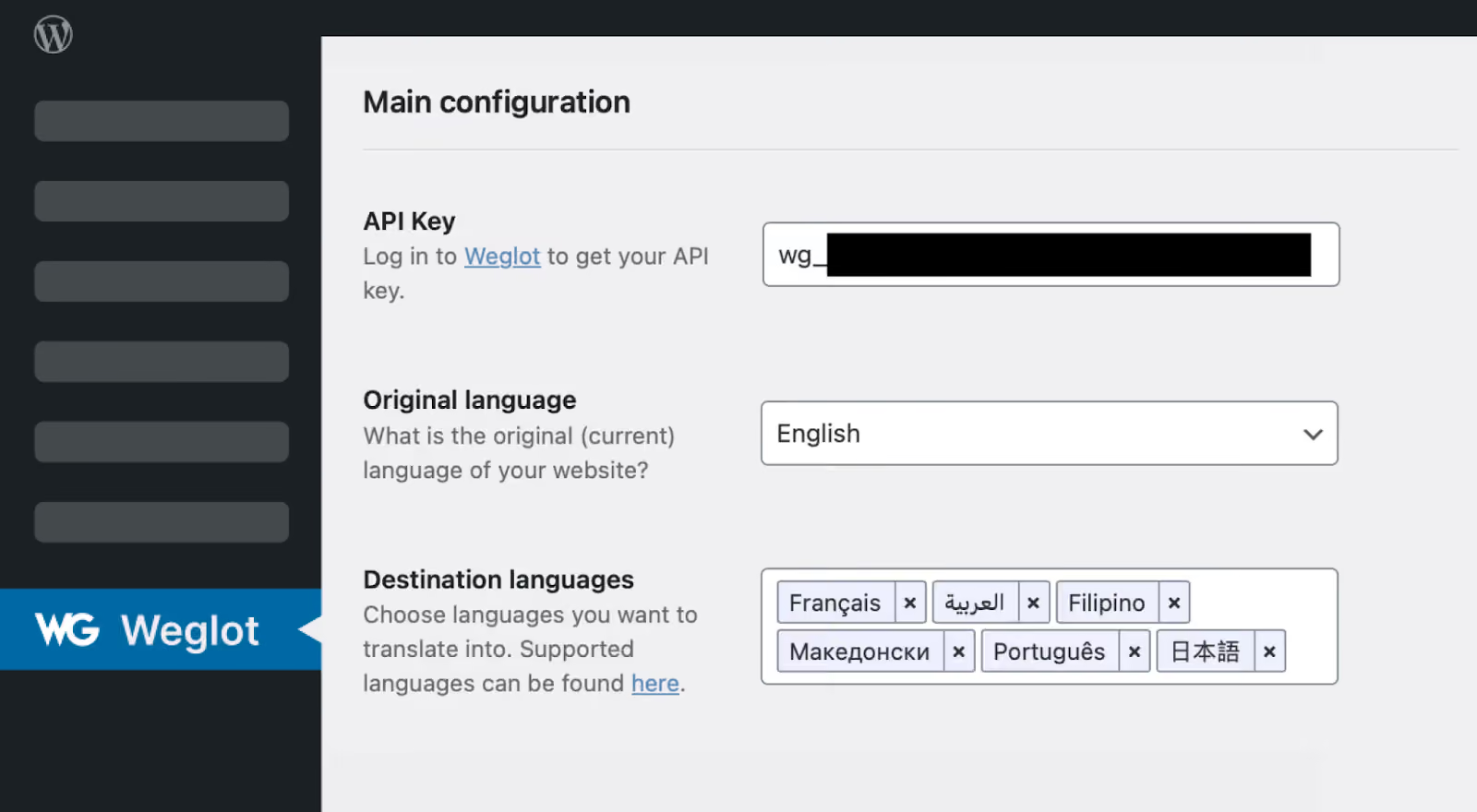
Set your original language (that’s the language your site is currently written in) and your destination languages (the ones you want to translate to).
Finally, choose your URL structure. That will either be a subdirectory (yoursite.com/de) or a subdomain (de.yoursite.com). Subdirectories are often better for SEO because they consolidate authority and link equity under one domain, but recreate the format you used in Polylang.
It doesn’t take long to set up Weglot (just 5 minutes!) and start translating your content. For example, local SEO software provider GMBapi.com found the process frictionless and added Dutch, Italian, German, French, and Portuguese in just a few hours.
Once installed, Weglot generates an initial layer of translations using AI. Ensure full coverage by using Weglot’s URL scan feature to include pages that aren’t accessible from your homepage, like landing pages.
Alternatively, you can upload the translations you exported from Polylang. Here’s how to do it:
Once your first translations are live, it’s time to review and refine them. Weglot offers several ways to do this, depending on your workflow, including a visual editor, AI, and professional help.
The Visual Editor is the easiest way to check and edit translations, as you can do it while browsing.
Glossary rules define how to translate specific terms, such as product names and branded language. If you set up rules in Polylang, you can carry these over to Weglot to keep translations consistent.
Here’s how you do it:
Note: The glossary import and export feature is available on Weglot’s Advanced plan and above.
Whether you’re changing your CMS, hosting provider, or translation tool, any major change to your website can cause things to break.
Use the following checklist to ensure everything is working correctly after the migration.
If something goes wrong, Weglot’s support center offers dozens of videos and articles to help and our reactive support team is just an email away at [email protected]. For Enterprise customers, a dedicated account manager is on hand to resolve any issues.
Once you’re set up, you can use Weglot’s features to improve the quality and speed of your translations. Here’s what you can look forward to next.
While Polylang required you to create translations for every language every time you uploaded a new post, Weglot continuously scans and translates all of the content on your site.
So, when you add or revise content on your original site, Weglot will automatically provide translations in real time.
This feature removes barriers that may have been stopping you from adding new pages to your site or entering a new market. You don’t have to hire translators (although you can if you wish) or reserve time to upload your translations. Translations happen without your team lifting a finger.
Alternatively, use the feature to test new markets without significant upfront investment.
For example, French ecommerce brand The Bradery used Weglot to test demand in Dutch and Italian markets. Seeing that traffic volume was limited on its Weglot Dashboard, the brand paused international expansion before overcommitting.
Weglot lets you produce incredibly accurate translations thanks to its AI model. If you need a shorter or alternative translation, Weglot can provide further AI assistance from OpenAI and Gemini.
Just click the AI button to the right of “Automatic translation” in the image below on the translations you want to activate it on (you can also do this on a whole page in 1 click:
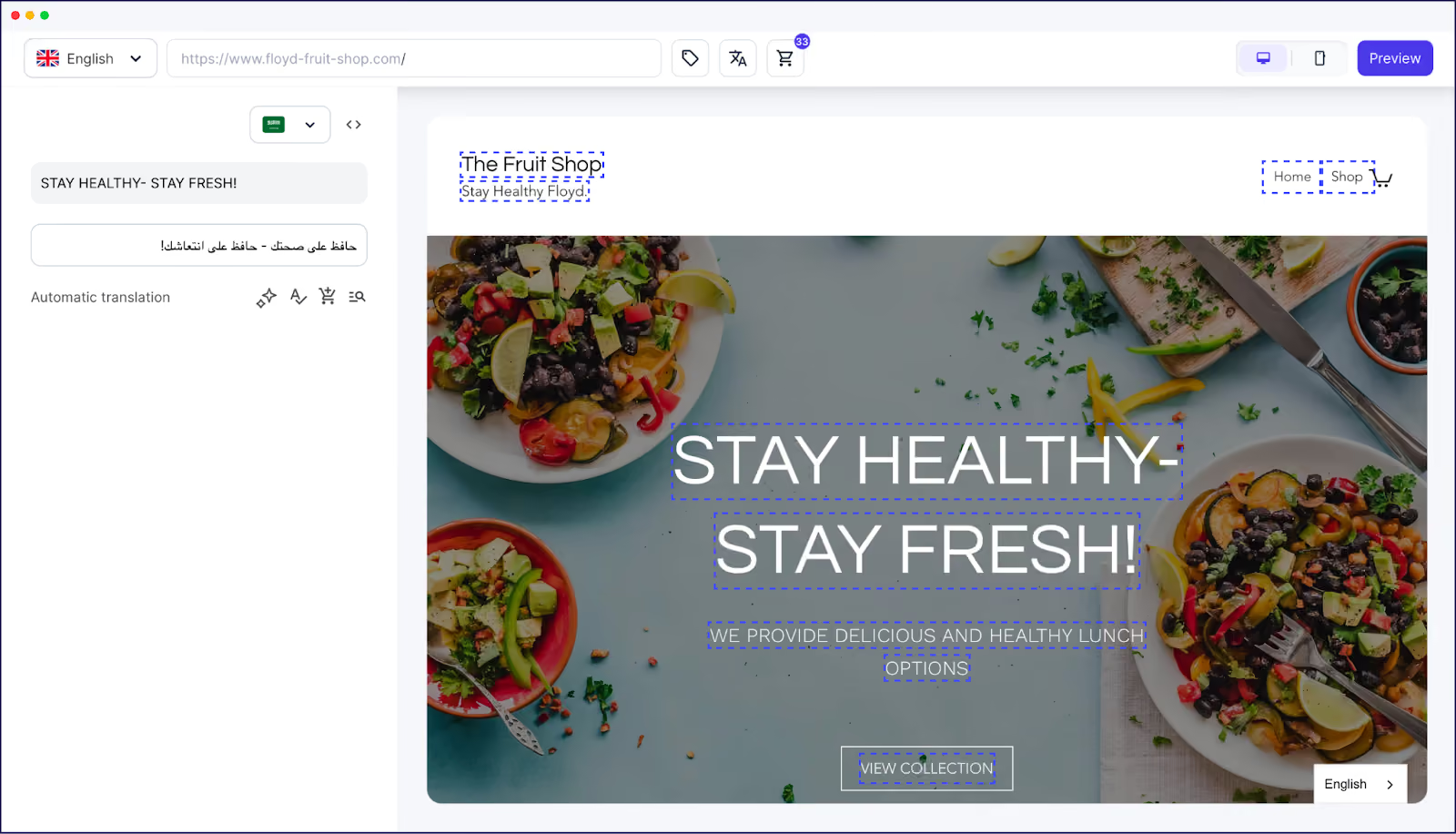
Weglot’s custom AI Language Model delivers high-quality results. But if you need to guarantee accuracy, the platform’s collaboration feature can connect you to a professional human translator.
Just choose the parts of your site you want manually reviewed. The translator will provide a translation for your approval, and Weglot will automatically update your site with the new copy.
With Polylang, making edits means diving into individual WordPress posts and making changes line by line. But Weglot lets you find and fix translation issues as you browse the site, simplifying workflows.
The Visual Editor lets you make changes in context without having to navigate the WordPress back-end and find the right post. It also democratizes the editing process and enhances your security, allowing anyone to make changes even without a WordPress login.
Here’s what the process looks like:
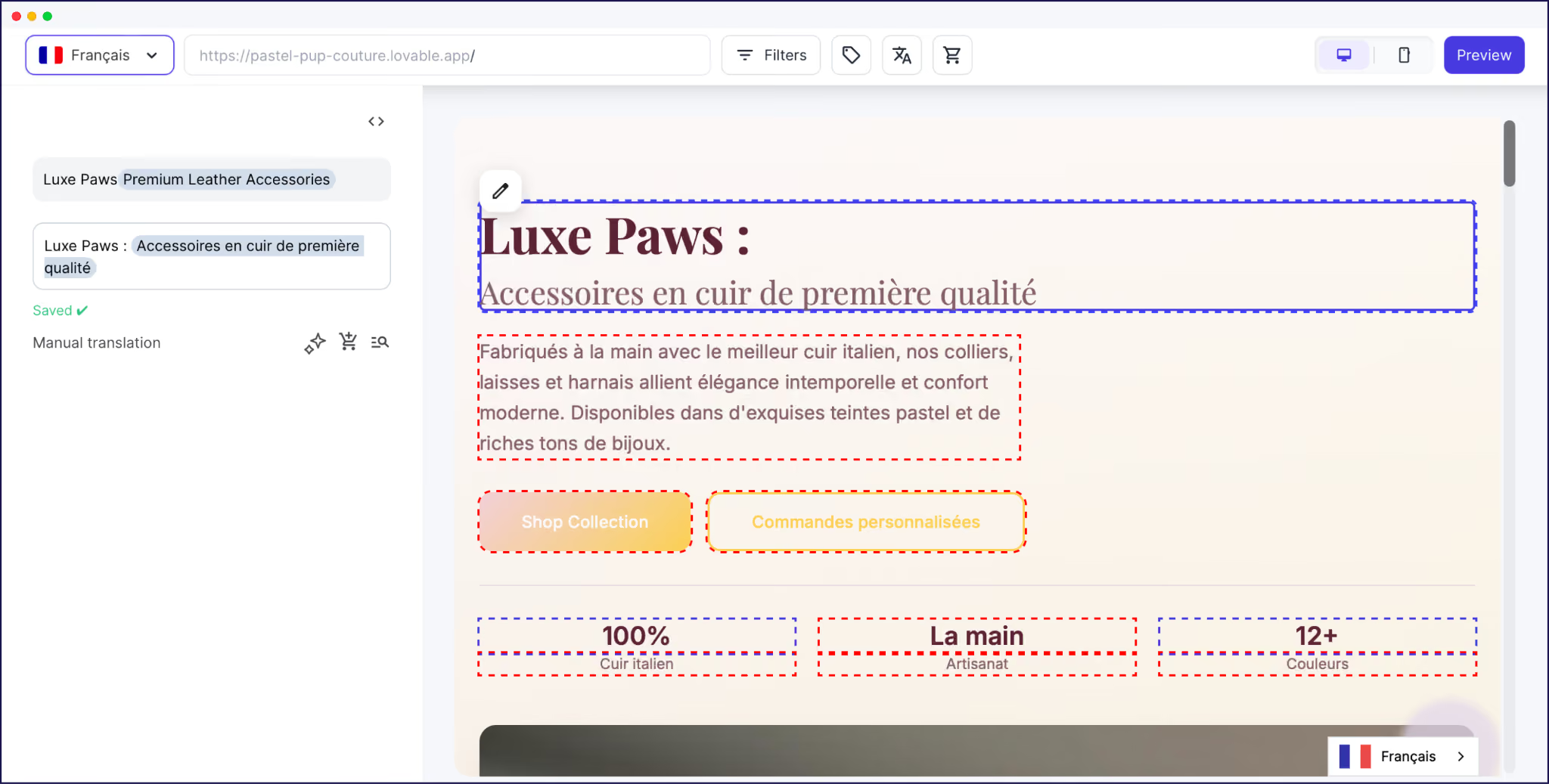
The Visual Editor is particularly powerful for agencies that manage several multilingual sites on behalf of clients.
Digital marketing firm Influence Society loves the feature, for example, because it means clients can make changes to their translations without risking breaking site functionality by messing about in the CMS.
Migrating from Polylang to Weglot means less manual work, better translations, and potential organic growth. It’s why over 110,000 websites use Weglot, from startups to Fortune 500 companies.
Ready to see first-hand how easy it is to migrate from Polylang to Weglot and simplify your multilingual site management? Try the 14-day free trial today.

We’ll get your first languages live. You decide how far you want to go. Try Weglot for free today.
Trusted by 110,000+ global brands





Weglot is tested and trusted by brands worldwide since 2016. Join them today.


The best way to understand the power of Weglot is to see it for yourself. Test it for free and without any engagement.
A demo website is available in your dashboard if you’re not ready to connect your website yet.