

Try Weglot for free


Adding new languages to a WordPress site is essential for international growth, but it can also put years of SEO gains at risk if not managed carefully.
Losing traffic isn’t caused by translation tools themselves, but by skipping guardrails like monitoring and testing. And with the right translation plugin in your pocket and a regimented troubleshooting process to hand, it’s easy to manage a multilingual site without your rankings being affected.
We’ve put together this checklist to safeguard your international WordPress site against ranking disasters, together with a best plugin comparison. Read on to discover how a protection-first approach lets you confidently add new languages while proactively catching any SEO issues before they affect your search performance.
Before launching multilingual content, run these eight technical checks to safeguard your WordPress site’s search rankings and avoid costly translation SEO setbacks.
Start by searching “site:yourdomain.com/country-code-here/” on Google. If you have Spanish pages, your search will look like this: site:yourdomain.com/es/.
Every proper translation should live at a clean, descriptive URL: yourdomain.com/es/. If Google returns redirects, 404s, or English content instead of Spanish, something’s broken.
Crawl results should never point users or bots to the wrong language version. Without clear separation, search engines get confused, rankings collapse, and your international expansion stalls. To prevent this, manually check the URL structure for every language added. Address issues before to avoid lasting damage to site authority.
Note: We’ve taken the URL example of subdirectories above, but the same steps apply to subdomain and country code TLD structure. Check the difference in our Notes on URL Structures below.
Hreflang tags tell Google which content belongs to which audience. Bad or missing tags mean search engines serve French pages to Spanish users, or ignore translations outright.

Use hreflang testing tools and Google’s Rich Results Test to confirm each translated page names every other version (including itself) with the correct language and region codes.
Hreflang errors are one of the fastest ways to lose your organic traffic, so run tests after every translation rollout, even with trusted plugins. Correcting hreflang mistakes is often a fix for lost rankings.
Canonical tags anchor each translation to its own URL. View the page source for /fr/about-us/ – the canonical should reference only /fr/about-us/, never the main English page or another locale.
Canonical errors quietly siphon traffic, making Google drop language variants from search. Always audit canonical tags after launching translations, especially on landing and transactional pages.
Canonicals must point to the active language, or duplicate content risks multiply. Automated plugins catch most issues, but verify manually on a few key pages to confirm.
Check /fr/sitemap.xml and equivalent sitemaps for every language. Each exists to tell search engines where your international content lives.
Missing or broken sitemaps undermine everything else – without them, Google cannot index new translations efficiently.
Submit each language's sitemap to Search Console separately. Watch for errors, as indexation failures often trace back to sitemap problems, not content or tagging.
Meta robots tags set visibility rules for search engines. Some translation plugins mistakenly mark translated pages as noindex, blocking them from search, so check your translated page source code for accidental noindex flags.
After launch, make this a regular part of site audits – one overlooked tag can unlist entire language directories overnight.
WordPress SEO plugins need proper configuration for multilingual pages.
In Yoast SEO or RankMath, locate the Languages or Multilingual section via WordPress Settings:
Settings > Yoast SEO > Languages
Or
Settings > RankMath > General > Multilingual
Assign unique, market-specific keywords for each language, avoiding blind translations of English SEO terms.
Plug these into site content and metadata based on actual local search volume, not automated translation. Proper plugin setup means every audience finds relevant pages. Include regular checks in your process, especially after plugin updates or adding new languages.
Protect brand terms, slogans, and product names from unwanted translation using glossary or dictionary features. Automatic systems sometimes mangle key phrases, causing confusion and damaging brand consistency.

WordPress translation plugins like Weglot allow you to set translation exceptions and configure glossaries to keep business language unchanged or refined across locales. Make this part of your workflow before publishing new content, as these manual exceptions ensure clarity and consistency at vital steps in the customer journey.
{{quote-cta-banner}}
Performance matters just as much as content. Use PageSpeed Insights to analyse each translated page. Translation plugins sometimes load extra scripts or resources that slow sites unexpectedly. Search engines factor performance into rankings, so if your multilingual pages falter, expect penalties even with perfect tags, sitemaps, or URLs.
Review metrics like Largest Contentful Paint (LCP) and Interaction to Next Paint (INP). Address issues before launch and prioritise performance for every translated version, not only your main site.
Translation plugins damage SEO when they create hreflang conflicts, serve wrong language content to search engines, or generate canonical errors.
Following our eight point checklist catches common mistakes before search engines do, adding a protection-first system to your workflow.
Adding translations to WordPress with a plugin can save months of manual labor and thousands in costs.
Plugins automate massive SEO tasks, slash translation effort, and make ongoing updates manageable. But translation plugins aren’t created equal – some can slow your site or spawn hidden costs as your content grows.
Choose carefully – the leading contenders WPML, TranslatePress, Polylang, and Weglot all work differently, so matching plugin to site needs means you avoid performance losses, scale headaches, and future regrets.
Let’s compare how each handles SEO, speed, and pricing.
WPML offers granular control of URLs, automatic hreflang tagging, and fine-tuned SEO settings through deep integration with SEO plugins. It can work for big sites needing custom workflows – though manual config is required for unique content types.
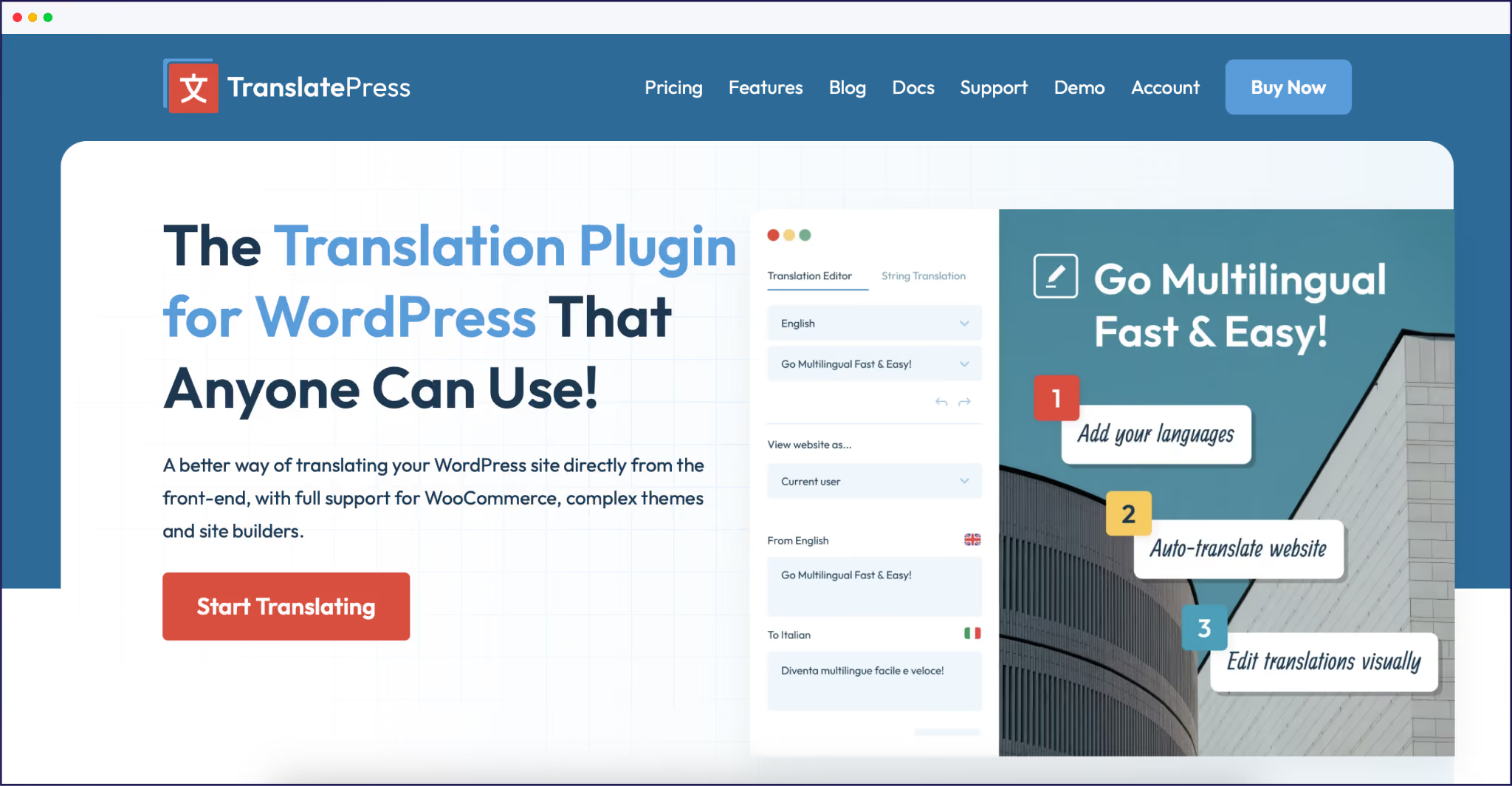
TranslatePress supports SEO-friendly URLs but you’ll need the SEO Pack add-on for advanced features like translated slugs and full hreflang support.
Polylang creates a new post for each language, giving clean URLs, but setting up hreflang tags and preventing duplicate content takes more manual config.
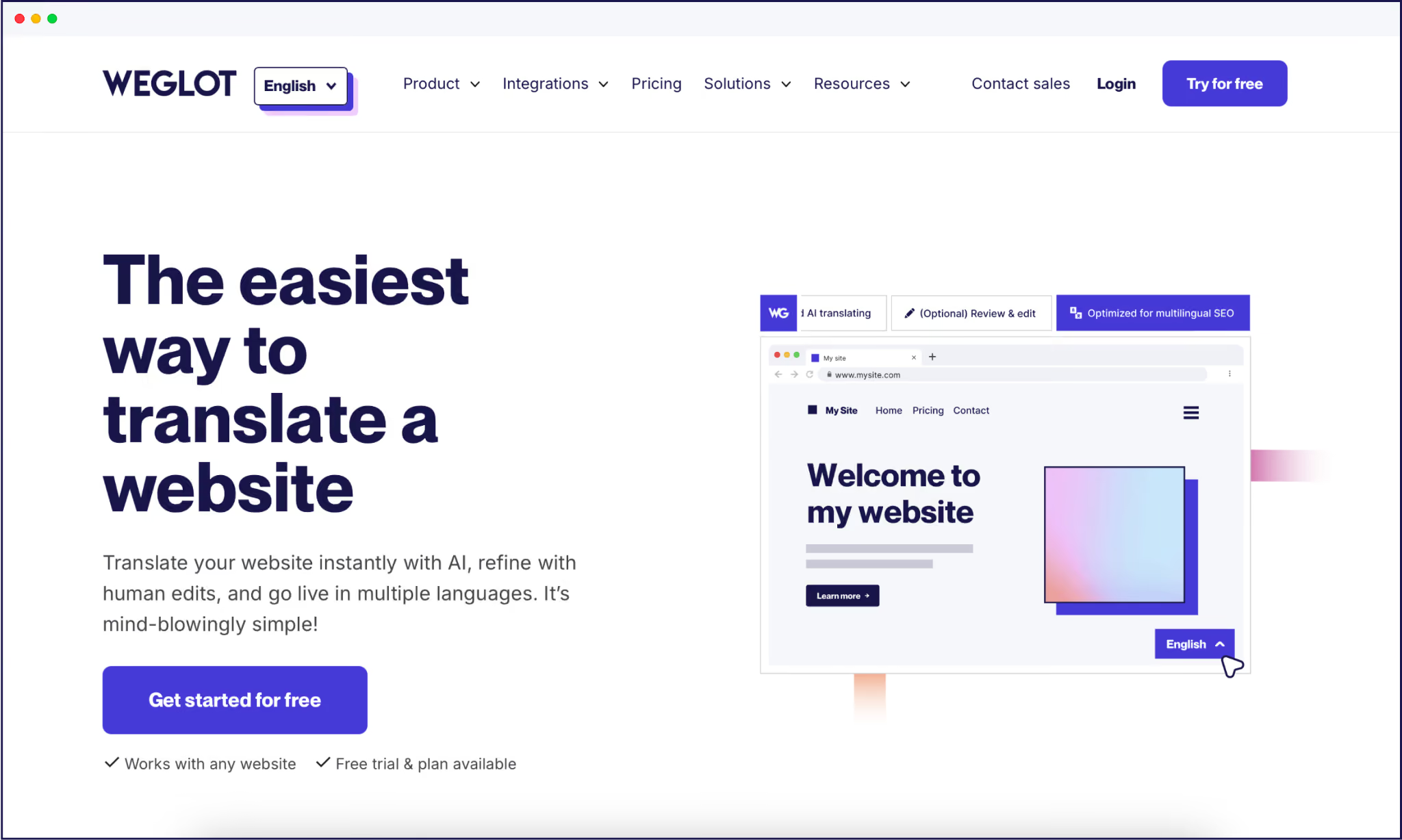
Weglot instantly creates SEO-optimized subdirectory or subdomain URLs, sets correct hreflang, canonical, and sitemap tags for every translation, and integrates with major SEO plugins without any extra config needed.
WPML and TranslatePress store translations in the WordPress database, and performance can dip as those tables expand – especially on sites with hundreds or thousands of posts or products.
Polylang avoids string bloat by creating new posts, but this can crowd your admin area and slow backend tasks at scale.
Weglot’s remote storage method keeps your site light, as translations live off-site, loading instantly with minimal weight added to your hosting. Real-world PageSpeed tests show Weglot maintains fast LCP scores, even under load.
WPML, TranslatePress, and Polylang run on annual licenses from €99/year for website translation, scaling prices for extra languages, automated words translated, and features like WooCommerce.
Weglot uses a subscription-based model on word count and monthly traffic, starting at €150/year. Should you exceed your automated translation word count, you simply move up a pricing tier.
Weglot’s pricing model, performance, and SEO automations make it the safest choice for agencies, SMBs, and marketers who want a future-proof WordPress translation system that minimizes hidden risks.
Check out just some of the benefits of choosing our WordPress translation tool below!
Set up is refreshingly fast and simple. Install the plugin from your dashboard, paste your Weglot API key, select your site’s original language, and any target languages – over 110 options are available, so localization isn’t limited by geography. Weglot starts translating all your content instantly – there’s no need for database edits, technical setup, or page-by-page manual input.
In the background, Weglot builds language-specific subdirectories, creates perfect hreflang tags, generates XML sitemaps for each language, and handles canonical tags correctly. Our plugin works with SEO best practices, with no manual XML editing or advanced tech knowledge needed.

Once your site is multilingual, editing translations is just as easy. Use the Visual Editor to click and adjust any text directly on your live site, seeing each change in context. Built-in glossary rules keep critical brand terms stable, and customizing your AI Language Model means your translations learn from your previous edits and custom guidelines, preserving tone across marketing and product pages without any manual input.

Weglot also comes with flexible integration. It translates WooCommerce stores, product listings, dynamic plugin content, and works with builders like Elementor and Divi. Cloud-based processing avoids theme conflicts and keeps site speed high, allowing businesses to scale without risk to performance.
{{ai-banner}}
We already detailed the importance of testing URL resolution in our checklist, but multilingual URL structures are worth a section of their own! All have their advantages, depending on site size, product offering, and countries of expansion. Get this right at the start for the best impact on rankings.
Most WordPress site owners use subdirectories, but there are three ways to structure multilingual URLs, each with unique advantages. Subdirectories, like /es/, /fr/, or /de/, inherit the full authority and trust signals of your main domain. Google treats every language folder as part of your core site, so link equity and existing rankings carry over.
This setup doesn’t require extra hosting, works with any major plugin, and keeps your backlink profile unified for easier SEO management. Businesses expanding internationally or offering multiple languages – not specific countries – find subdirectories the most efficient for scaling and SEO consolidation.
Subdomains, such as es.domain.com or fr.domain.com, pass some authority from your main domain but act as semi-independent sites. Google recognises these relationships but requires separate Search Console verification for each subdomain and individual XML sitemaps.
This structure suits region-specific strategies, product variations by market, or technical needs like different server locations. However, each subdomain will compete for rankings with your root domain and needs distinct SEO monitoring.
Country-code top-level domains (ccTLDs) – like domain.es or domain.fr – start with zero shared authority. They’re treated as fully separate entities, so each requires separate hosting, SEO campaigns, and unique link profiles.
Brands with legal divisions by country, compliance requirements (like data residency), or dedicated teams benefit most from ccTLDs, though building authority from scratch takes time and effort.
“Google generally recommends subdirectories for international SEO when content across languages is similar. Traditional backlinks and accumulated authority don’t always transfer if you change URL structures later, so it’s best to choose the right format from the outset.”
– Matt Cutts, Former head of the web spam team at Google
Tracking your multilingual SEO performance is a final step to protect rankings and fix any issues before they become disasters.
Start by adding each language subdirectory as a distinct property in Google Search Console; this lets you monitor impressions, clicks, and indexing for every language version.
Next, create Google Analytics 4 segments to separate traffic by language – this reveals which regions and keywords drive the most engagement.
For further protection, configure uptime monitoring for every language URL. Use alert systems to flag traffic drops as soon as they happen, so you can jump on technical errors before they impact sales or visibility. For severe drops, diagnose whether the issue is with technical SEO (indexation, sitemap glitches, missing hreflang) or simply routine fluctuation for a new translation.
Newly translated pages usually surface in Google within 14 to 30 days. Achieving rankings at the same level as the original language generally takes 60 to 90 days with solid optimization and monitored fixes. Weekly reporting is key to distinguishing true problems from normal growing pains.
It’s also worth treading carefully by batch translating. Begin by translating 5 to 10 top-performing pages and tracking their progress for two weeks. Once proven stable, expand to more categories. This measured rollout approach – and ongoing monitoring – ensures everything is working smoothly and any problems that occur are better contained.
Building a multilingual WordPress site doesn’t have to be stressful!
We’ve detailed eight essential checks, explained the pros and cons of top translation plugins, and shown why protection-first systems matter for lasting SEO.
Weglot is the safe, easy choice that transforms translation from a risky gamble into a controlled, rewarding process. With automatic setup, SEO safeguards, compatibility, and real-time editing, Weglot keeps performance and rankings steady – even as your audience grows worldwide.
If you’re ready to experience a hassle-free, global website, start your 14-day Weglot free trial!

We’ll get your first languages live. You decide how far you want to go. Try Weglot for free today.
Trusted by 70,000+ global brands


%2520weglot%2520branding.avif)





Weglot is tested and trusted by brands worldwide since 2016. Join them today.


The best way to understand the power of Weglot is to see it for yourself. Test it for free and without any engagement.
A demo website is available in your dashboard if you’re not ready to connect your website yet.


If you already have multilingual SEO foundations in place (language-specific URLs, hreflang tags, translated metadata), you're most of the way there. GEO visibility relies on those same signals. AI search engines prioritize sources that match the query's language, and our analysis of 1.3 million citations found that translated websites gain 327% more visibility in AI Overviews than single-language sites.
The remaining work is coverage and freshness: translate your site fully, including metadata, and keep every language version in sync as content changes. The Weglot plugin manages that automatically on your WordPress site, across 110+ languages.
For the full 5-step process, read our multilingual GEO guide.


.avif)