

Try Weglot for free





Adding a new language to your website can feel like a quick win, especially when using Weglot. Almost as soon as you let the engine run, your content is live within minutes. However, what happens in the immediate aftermath of that launch is where most small teams hit trouble.
Your content will keep changing (especially if you add new pages), which means review requests can pile up. So, without a defined process for who handles what and when, translated pages can drift further from your source content. The result is a multilingual presence that looks inconsistent and creates more work than it saves.
While Weglot has the functionality, you'll still need the know-how to build a website translation workflow that keeps your brand consistent across languages. This post will take a close look at how to do it!
The early days of a multilingual site often feel manageable. There's usually one or two languages, a contained volume of content, and a few team members who can cast an eye over the output. Once you start to progress though, the problems can surmount and all arrive at once.
Without a defined process in place, new content arrives in the Translation List faster than the team can work through it. Because there's no priority system, everything looks equally urgent, which means your most-visited pages might not get reviewed first.
Without a translation glossary in place from the start, the same product name or brand phrase can get different translations depending on team member edits and how strings have been processed. This is an inconsistency that builds up in a few ways:
Ultimately, going multilingual without any configuration is leaving undefined judgment calls about your brand up to poor decisions at best. In contrast, a structured workflow addresses the context at source.
Before getting into the steps, it helps to understand what you're building towards. A reliable website translation workflow has three distinct layers. However, the order in which you set them up determines how much manual work the remaining layers require.
Our own data talks about how more than four out of five users rely solely on AI-generated translations without needing to make any edits. Given how far this baseline can carry you, running AI translation before anything else makes perfect sense.
Rather than bring on more team members and deal with the cost and hassle of training them to your standards, you can get far with a focused and refined workflow. This can seem fantastical, but it's possible when using Weglot at the core.
Let's go through the steps involved, starting with Weglot's functionality, before getting into the person-centric skills you'll need.
When you first connect to Weglot, the setup wizard will help you define your project name, platform, languages, and your domain structure.

Your original language is the site's primary language, while target languages are those you're adding. There's no need to commit to every market on day one because you're always able to add more from within Weglot.
There are a couple of screens to help you make more accurate translations. For instance, the Dashboard > Glossary screen lets you add terms that need to stay consistent across every translation:
For each entry, you set one of two rules (that also apply retroactively): always translate using an approved equivalent, or never translate.

Some content shouldn't be translated at all, such as legally prescribed notices or live data feeds from third-party systems. The Settings > Translation Exclusions lets you remove them from the translation workflow:
Getting these in place now means you're not manually correcting the same terms across new content batches in the future. DeepL's localization survey discusses how over 80 percent of users expressed concerns about accurately translating industry-specific terms. The glossary is the most direct fix for this, but Weglot has an extra trick up its sleeve.
The AI Translation Model is Weglot's brand-alignment layer. Where standard AI translation converts text accurately, the Translation Model shapes its register, terminology choices, and tone based on instructions you define.
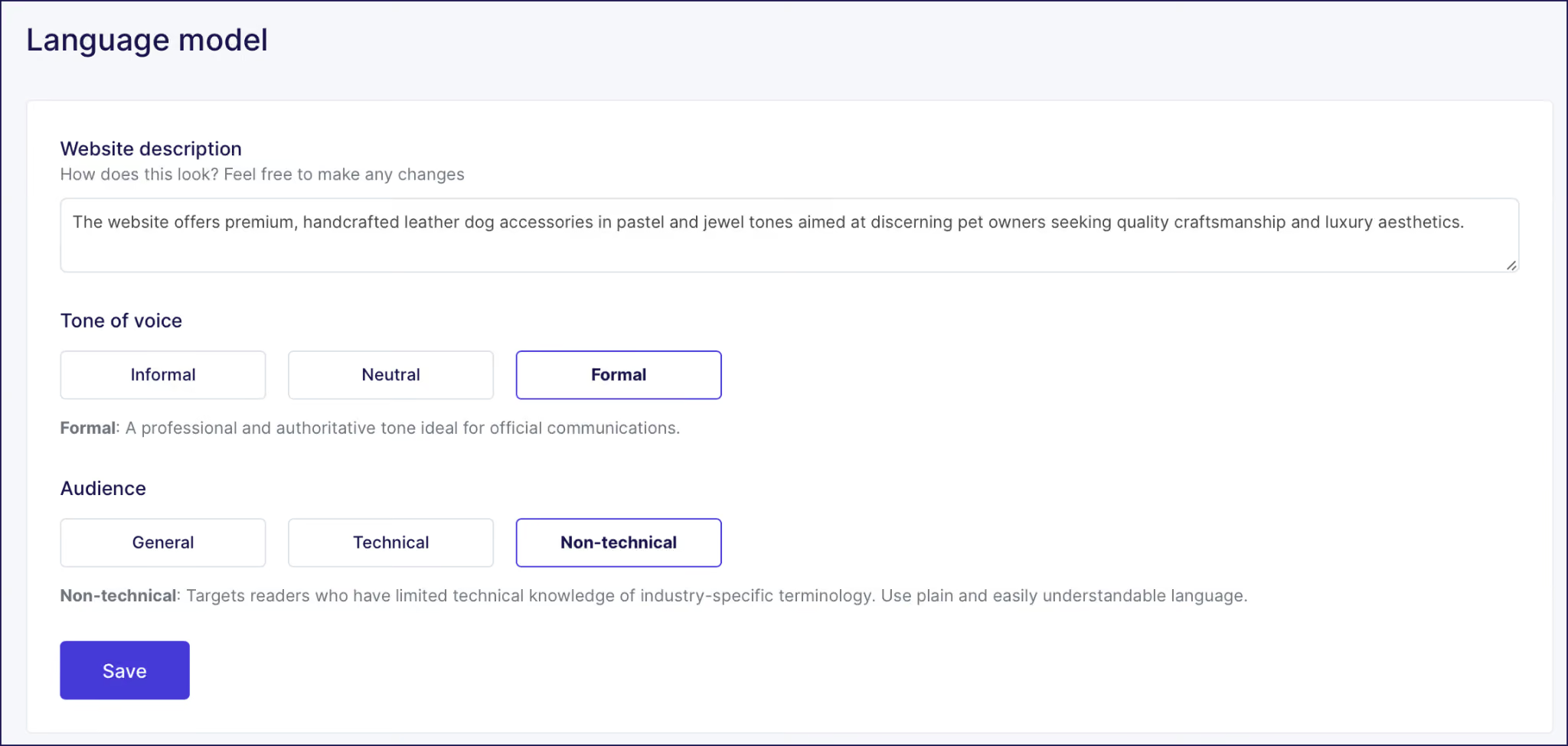
To use it, head to Settings > Language model to set it up, where you'll want to provide some details:
The model draws on your glossary rules and instructions, so it starts with meaningful context. Once active, every string processed through it gets a GenAI label in your Translation List, which is easy to filter and review.
In our opinion, configuring the Translation Model before the rest of the review workflow is built means the strings your team receives are already shaped to your brand's voice.
Most teams start a translation project with everyone sharing the same level of dashboard access. This can feel flexible at first, but when anyone can edit anything, accountability disappears.
For example, if a brand term is used inconsistently or a CTA that doesn't match the intended tone, it's unclear who made the change and whether it should stay. The resultant 'blame game' isn't efficient!
This also applies to giving a freelance translator or bilingual colleague full account access, as it's more exposure than that relationship requires.
Weglot's three permission levels solve these kinds of problems before they start:
To add a team member, go to Settings > Project Members and invite them by email. They get access immediately after accepting the invitation.
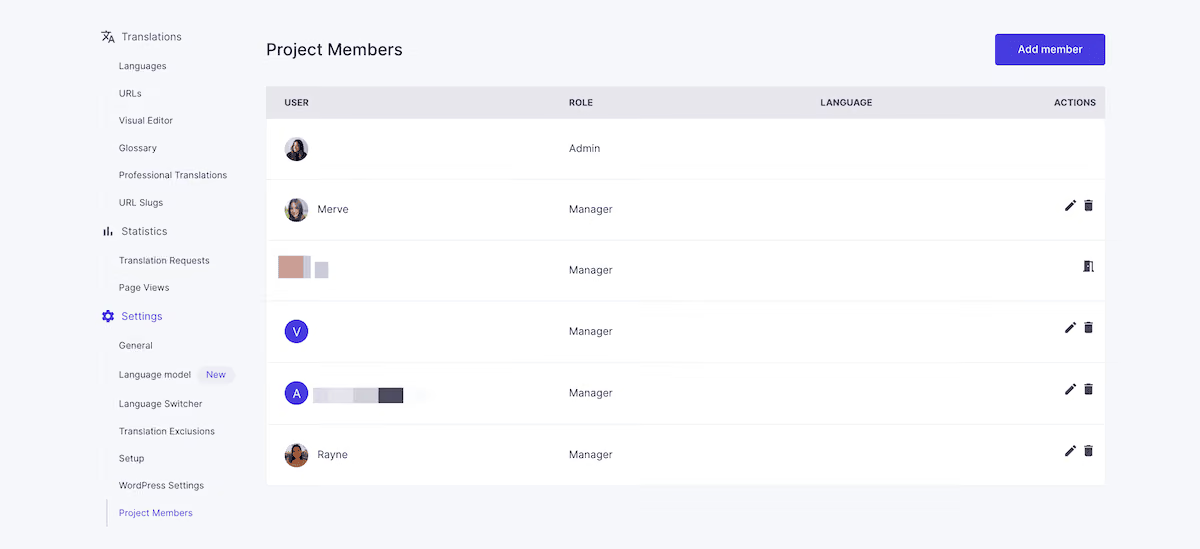
The Weglot Settings showing the Project Members screen with an option to add a team member by email.
The number of members you can add depends on your premium plan. For a small team, the most practical structure is one person or agency per target language assigned as a Translator. That single point of accountability means every language version has a named owner.
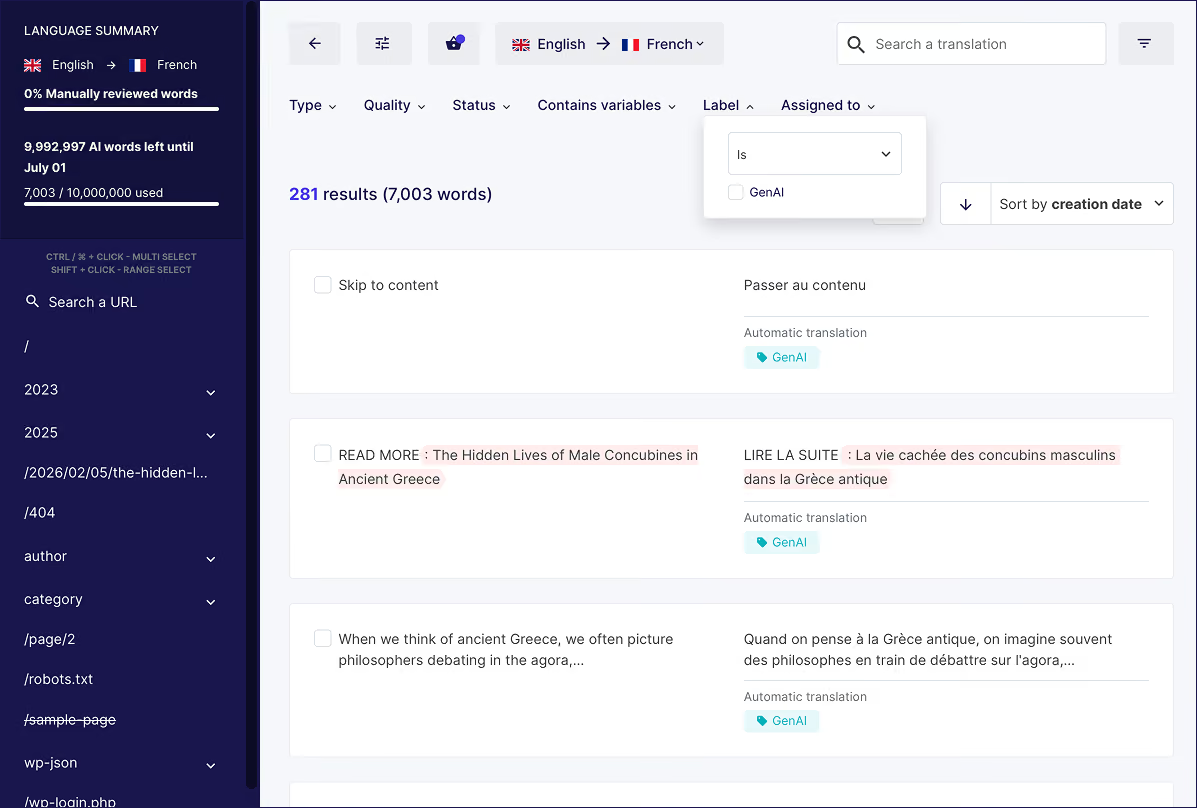
The Weglot Translation List showing the filter panel with options for quality level, GenAI label, type, and more.
Not all content carries the same translation risk. A home page headline and an archived blog post are nowhere near equivalent in terms of what happens if the translation misses the mark.
A tiered approach directs your team's effort to where it matters most:
The Translation List filters will likely be where you spend most of your review time. Filter by the following depending on your current task:
For layout-sensitive content, the Visual Editor gives you a live preview of the page alongside the edit interface.
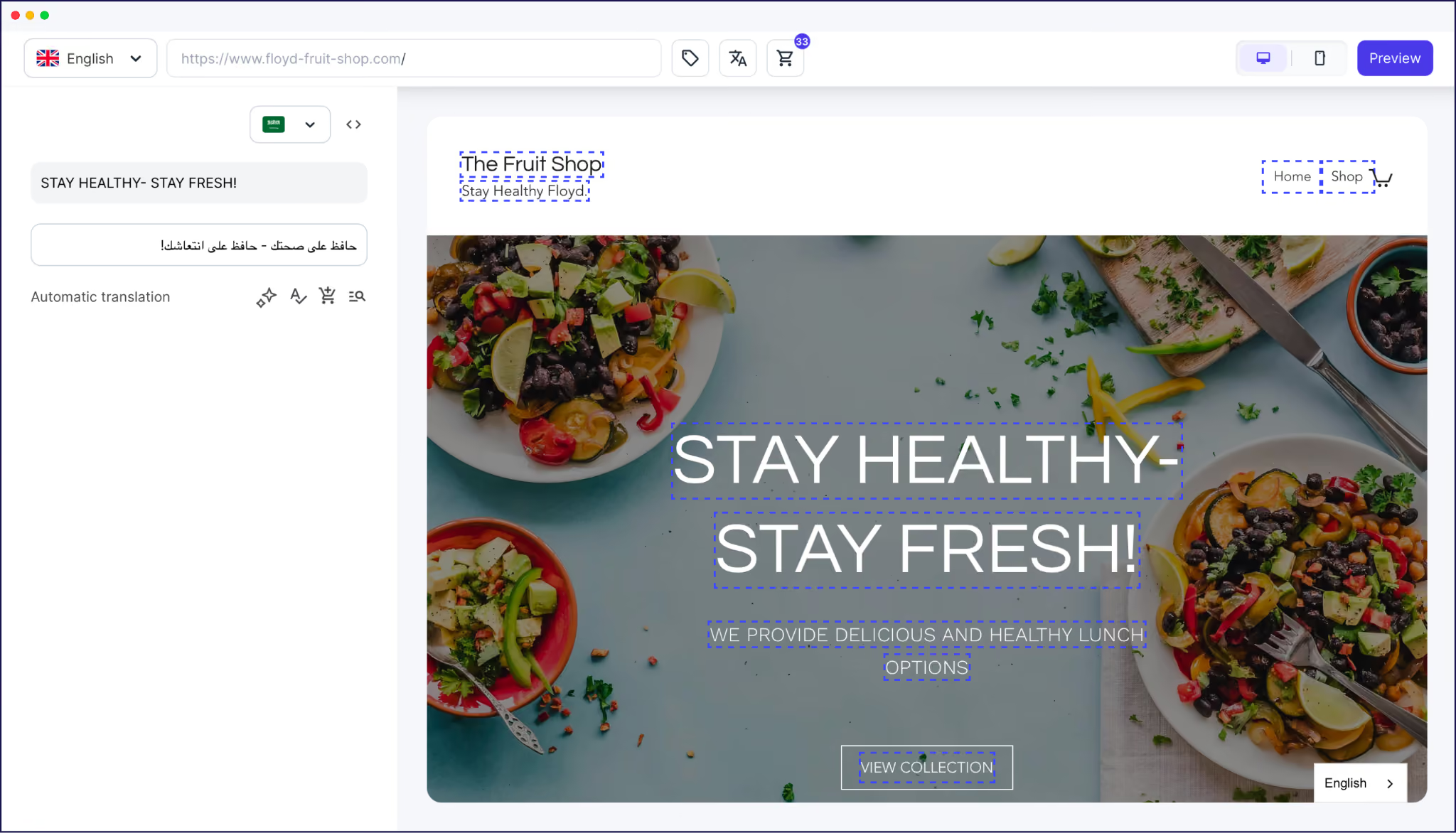
Languages with longer string lengths than English (German is the most common example) can push translated text outside the boundaries of its design space. The Visual Editor lets you catch and fix those issues before visitors see them.
Rather than sharing one open queue, you can assign specific strings to the person responsible for that language. In the Translation List, select one or more strings, click the three dots at the bottom of the page, and choose Assign to:

The Translation List showing strings selected and a menu displaying the Assign To option.
The assigned team member will get an email notification and can access the queue by filtering the Translation List by their name.
"We take advantage of AI translation in our 37 languages and our global team makes quick fixes if needed. It changed our way of working and we love it!"
– Eric Espinoza, IBM
This is available on Pro plans and above. For other tiers, you can still create a clear division of responsibility by sharing filtered Translation List views. Filtering by language pair gives each person a focused queue without needing any formal assignment.
The advantage of building your workflow in Weglot is that you don't have the burden of ongoing maintenance. When you update existing content or publish something new, Weglot detects the change automatically, generates a new AI translation, and updates the Translation List.
{{quote-image-banner}}
For most small teams, a twice-weekly cadence covers the basics:
You can order from the Translation List, the URLs page, or directly from the Visual Editor.

Building orders into your content production calendar keeps turnaround time from becoming a last-minute blocker, especially when you consider that translations come back labeled and live within 48–72 hours.
The logic of this workflow is that most of the consistency work happens before your team opens the Translation List. A well-configured glossary and AI Translation Model mean the strings arriving for review are already aligned with your brand's terminology and register. This makes the review pass faster and less likely to surface the same corrections repeatedly.
The setup of configuring the foundation, assigning roles, setting up a tiered review system, and regular maintenance is the difference between a multilingual site that drifts and one that stays consistent as your content grows.
If you're ready to put a process in place rather than manage translation reactively, you can start your 14-day free Weglot trial without the need for a credit card.

We’ll get your first languages live. You decide how far you want to go. Try Weglot for free today.
Trusted by 70,000+ global brands








Weglot is tested and trusted by brands worldwide since 2016. Join them today.


The best way to understand the power of Weglot is to see it for yourself. Test it for free and without any engagement.
A demo website is available in your dashboard if you’re not ready to connect your website yet.


Free, Starter, and Business plans support up to five project members. On other tiers, Pro plans support up to ten members, Advanced plans have a limit of 25, and Extended plans can support up to 50 team members.
Yes! Translator access is scoped to specific language pairs. The Translation List can be filtered by language pair so each person sees only the content they own. String assignment on Pro plans and above makes this handoff even more direct.
Weglot detects content changes automatically and generates a new AI translation for any updated string and adds it to the Translation List. Strings you've previously edited manually or sent to a professional translator are not overwritten.
You select strings in the Translation List and click the cart icon, or choose pages from the URLs page to queue everything on those pages at once. You can also add individual strings to your order from the Visual Editor.
New translations appear in the Translation List with the Automatic quality label. You can sort by creation date to surface the most recent strings. Team members assigned to a language on Pro plans and above also receive an email when new strings land in their queue.


