Try Weglot for free


There’s way more to making your Shopify store multilingual than toggling a few settings. From URLs to translation management, each layer comes with its own set of rules, and plenty of room for mix-ups. Get one piece wrong, and you can end up with duplicate English pages, sudden translation loss, or shoppers landing on content they can’t read.
Shopify handles languages with a mix of market targeting, URL formats, and database logic – potentially complicating your site and visitor experience as you expand. A smart approach pairs Shopify with a cloud-based AI translation tool, which handles everything on external servers. Sites can then scale as needed, with performance and UX unaffected.
Let’s dive into the details step-by-step, untangling Shopify’s language settings for best practice configuration. We’ll also detail how an integrated third-party app can erase native Shopify hurdles and pave your future path to international expansion.
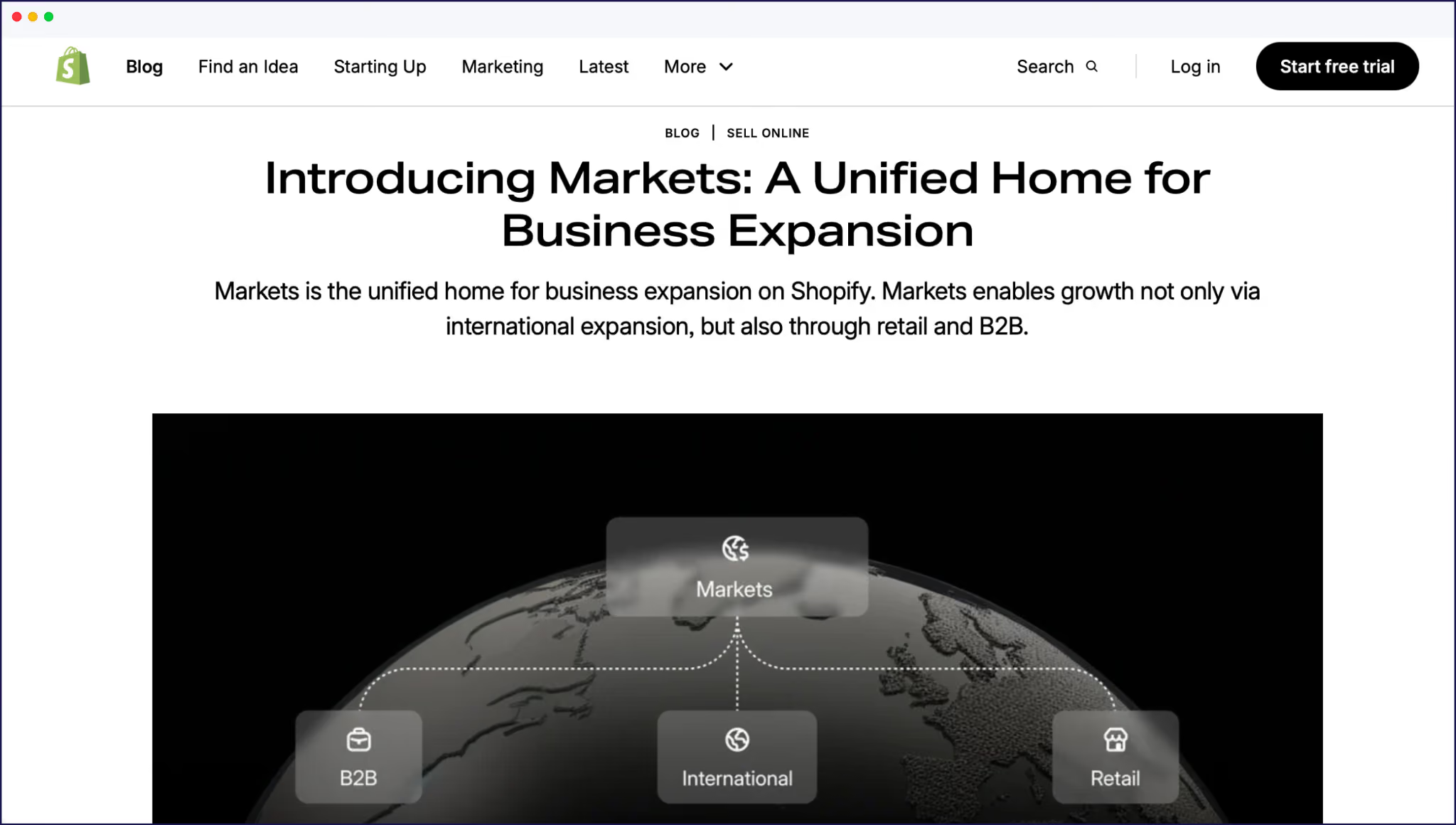
Shopify Markets makes adding new languages – and reaching global customers – much less of a headache. With Markets, you can manage different currencies, set local domains, and assign multiple languages. Here’s a step-by-step guide to adding a second language to your Shopify site:
Remember – until you publish the language, visitors won’t see it. Make sure all steps are completed, and test the translated pages on your live site to check everything’s working okay.
Changing your store’s default language gives your customers the right first impression, whether they’re browsing from Paris or Sydney.
Go to your Shopify admin, select Settings > Languages, and look for your published languages. Select ‘Change default’ beside the language you want to set as your store’s main language, choose from the menu, then Save.
This updates the language used for your store’s checkout, theme, and core content. Existing translations stay intact, and the change only updates your preferred/default site language.
Assigning languages to markets lets you customize the experience for every audience and avoid common SEO headaches. Shopify Markets also lets you add languages for precise regional targeting:
Each market-language combo gets a unique URL, so German shoppers land on /de/ and Japanese shoppers see /ja/, matching their country and language preferences.
Different Shopify markets can have different default languages. If you want your French market to load in French by default – or any other specified language – follow these steps:
This sets which language first appears for shoppers in each market, helping you serve customers with the language that feels right for their region.
All of these options give you a good translation foundation for your Shopify store, but if you need more than 2 additional languages, full website translation (including dynamic content), better control, proper multilingual SEO setup, or tailor-made workflows, you’ll need to consider using a dedicated AI website translation tool like Weglot.
{{quote-image-banner}}

Shopify’s translation features sound good on paper, but real-world use often means running into hurdles that can slow down your global growth.
For starters, let’s decode a notorious warning that Shopify users may recognize – ‘Changing default language will delete translations’.
Shopify stores all translations as database entries linked to your default language. If you switch that default, the system breaks these relationships and wipes out any translations tied to the original base. Ouch. Store owners are forced to back up, reimport, and repair orphaned content – often manually – because Shopify won’t let you map translations over to the new default.
Duplicate English pages are another trap. When you add markets with similar languages – say en-us, en-gb, and en-au – Shopify creates new versions for each region. Search engines and analytics start to see redundant English content at different URLs (like /en-us/ and /en-gb/), which muddies your SEO efforts. Fixing it means keeping meta tags, hreflang, and canonical URLs in careful sync – something not managed automatically by Shopify’s native tools.
Manual language selection is another common pain point. Shopify doesn’t automatically redirect visitors based on preferred language or IP location. Shoppers must pick their language every time. If they miss it, or the market assignment is wrong, they land on the wrong version, leading to confusion and lost sales.
Ongoing translation maintenance can also snowball fast. Third-party apps and dynamic content – think reviews, pop-ups, or product filters – aren’t covered by Shopify’s translation engine. Store owners need regular checks and fixes to keep everything accurate, especially as new content rolls out.

Store owners should also note that Shopify’s Translate & Adapt app only allows automatic translation for up to two languages per store, and there’s currently no upgrade option to increase this limit. If you want more languages, you can either manually enter translations – a time-consuming process – or grab an extension to handle them automatically for you.
Using a third-party website translation tool removes the obstacles that come with native Shopify. Let’s take a look at how our own app, Weglot, integrates perfectly with the platform, giving complete control over your translations, and much more besides.
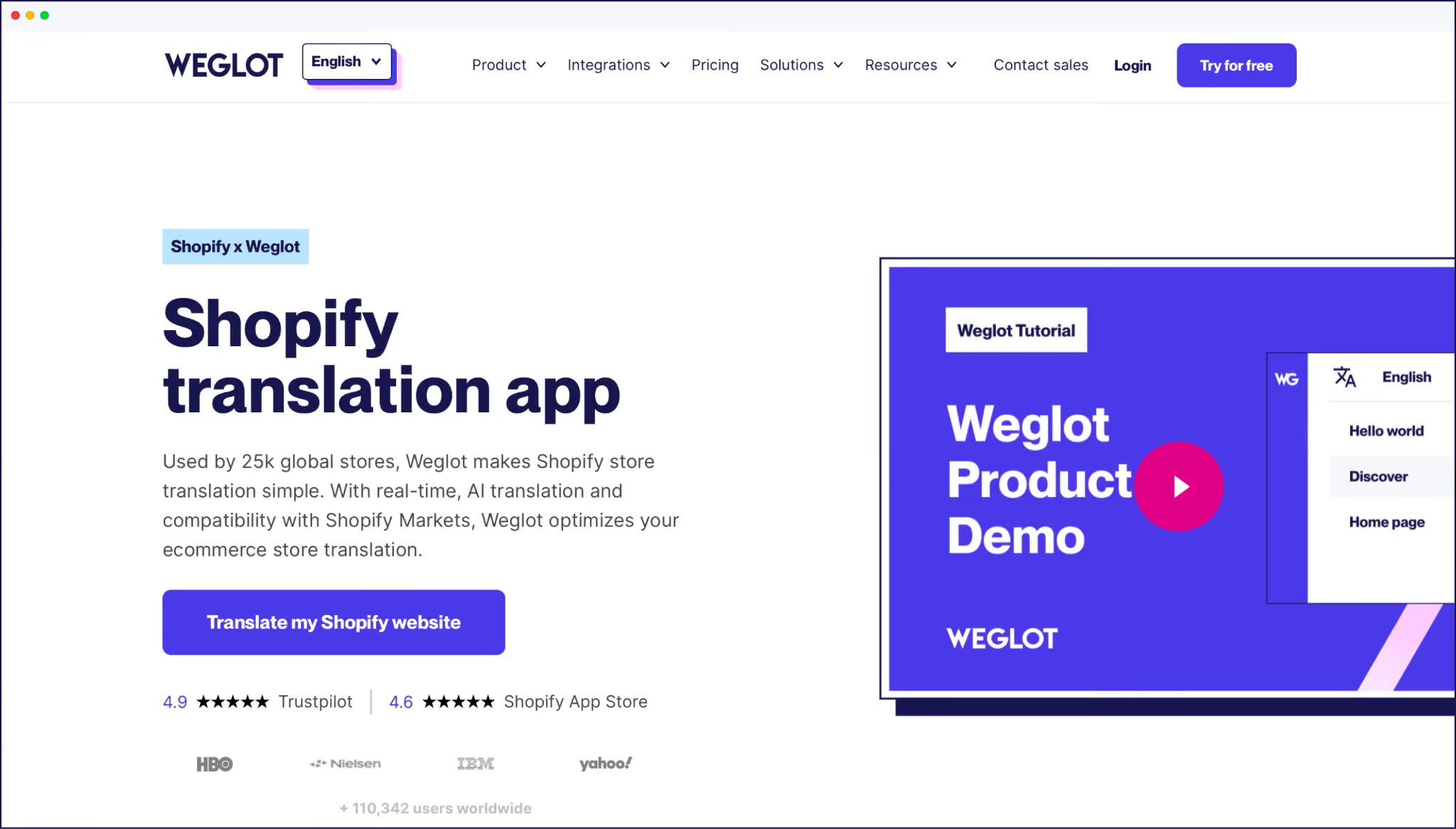
Weglot skips the usual Shopify translation pain, easing the pathway to global growth. We use a proxy architecture – so instead of relying on Shopify’s database, Weglot operates independently, making it compatible with all themes and third-party apps.
No matter how complex your store, every piece of content – including checkout pages, pop-ups, reviews, and app integrations – gets translated automatically, avoiding gaps that native tools leave behind.
Installation with Shopify takes less than 10 minutes, and Weglot works perfectly with Shopify Markets. After choosing your languages, Weglot scans your store, finds all your content, and translates everything using a mix of instant translation and our AI Language Model.
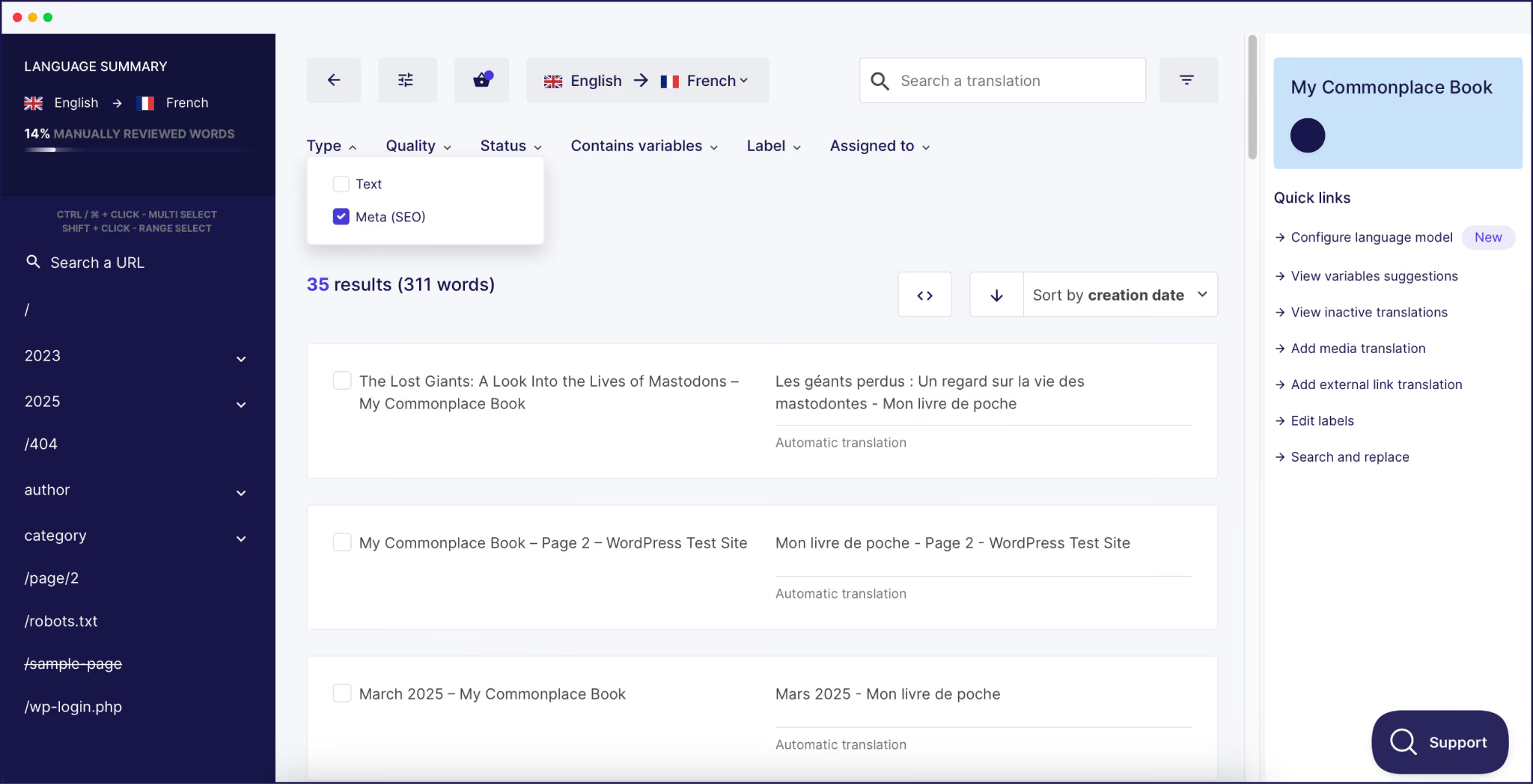
Your new language versions live on their own subdomains or subdirectories, with proper hreflang tags, translated metadata, and clean URLs – so search engines index every version, giving you automatic multilingual SEO. Compare this to organizing your international SEO through native Shopify – our automation saves heaps of time and avoids any manual errors.
There are no more deleted translations when you want to change your store’s default language. Weglot’s system keeps translations connected to your store’s structure regardless of Shopify’s internal language mappings, so you never lose edits or customizations. And because Weglot doesn’t force duplicate URLs for similar languages, you avoid any potential SEO duplicate content penalties.

“With Weglot, we give users all of the control they need! Along with automation and SEO, every translation is editable in context using our frontend Visual Editor. You can store word preferences in a glossary, so brand terms are maintained across languages. And you can also add human review with teammates or by ordering professional translations straight from your account.”
– Eugène Ernoult, CMO @ Weglot
Ready to grow your Shopify store, free from native constraints?
Launching a multilingual Shopify site with Weglot is the fastest way to put your business in front of the right people – wherever they are in the world! Weglot automates 100% of your site’s translation, including checkout and app content, handles site structure with language-specific URLs, and gives you full editing power to fine-tune every phrase.
Whether you’re adding one language or 10, everything is managed from a single dashboard. To start attracting new shoppers and expand internationally with confidence, try Weglot’s 14-day free trial today, and see how big your Shopify store can grow.

We’ll get your first languages live. You decide how far you want to go. Try Weglot for free today.
Trusted by 70,000+ global brands








Weglot is tested and trusted by brands worldwide since 2016. Join them today.


The best way to understand the power of Weglot is to see it for yourself. Test it for free and without any engagement.
A demo website is available in your dashboard if you’re not ready to connect your website yet.