

Try Weglot for free




WordPress isn’t multilingual by default, so if you want to reach global audiences, you’ll need a translation plugin. But be aware that going international isn’t just about translating text. Alongside foreign-language content, global expansion is about adjusting SEO, managing URL structures, and making sure every string – menus, forms, product descriptions, etc – gets translated.
Choosing the wrong plugin can slow your site, break your URLs, or leave you well out of budget. But the right tool can help you launch your site in multiple languages, and in just a few minutes.
This guide compares the top WordPress language plugins, shows you how to avoid common pitfalls, and shares best practices for a smooth multilingual setup. Read on to get your site ready to take on the world!
Choosing the right WordPress translation plugin is about picking something that does the entire job – translating your site quickly, integrating with your ecommerce stack, and not compromising your SEO or budget. Below, we’ll compare five front-runners for anyone aiming for international growth.
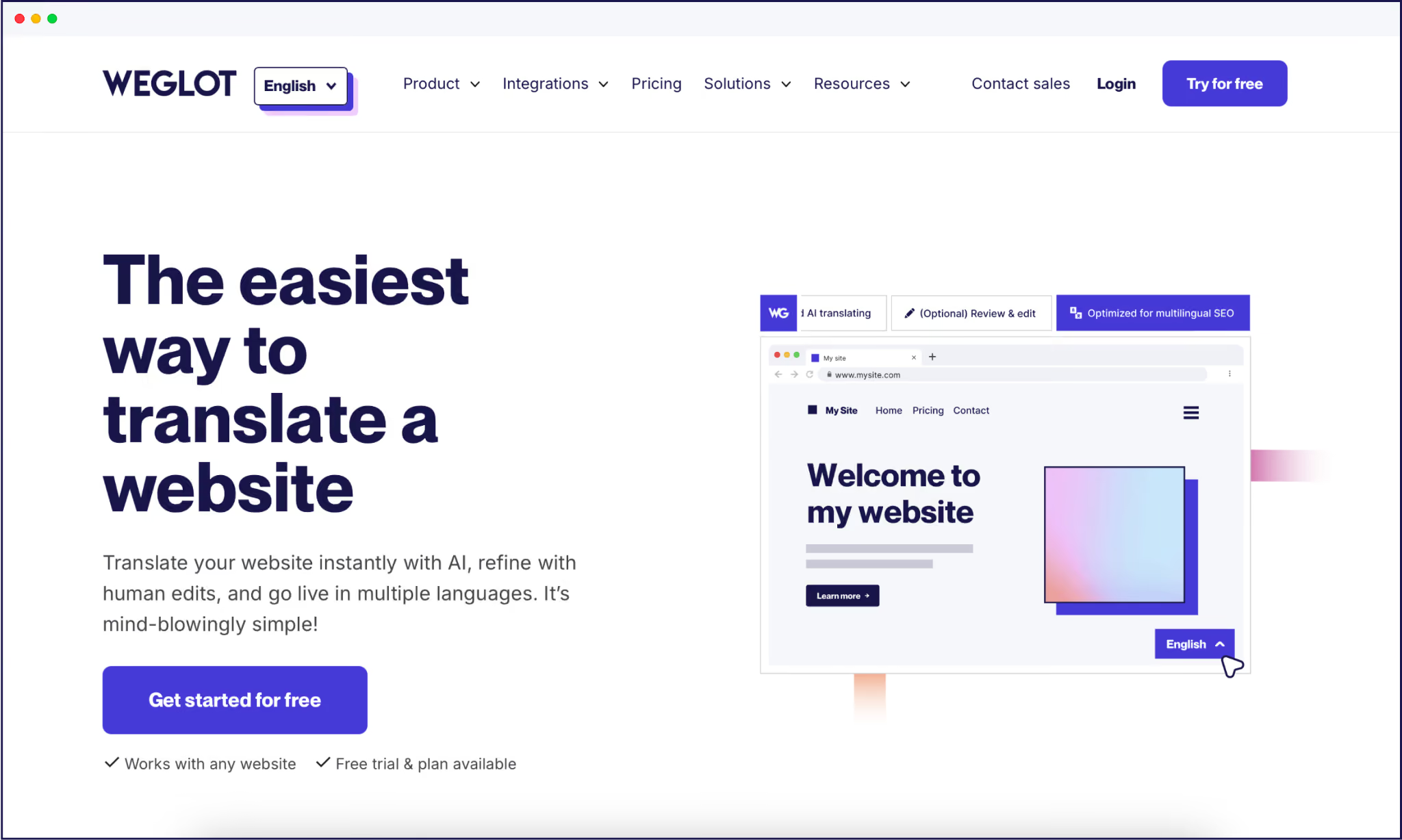
Weglot is hard to beat for speed and reliability. Within five minutes, you’ll have your entire site translated into 110+ languages. Your translations are served from the cloud, so your WordPress installs stay lean and your Core Web Vitals’ scores are unaffected.
Weglot’s workflow pairs instant machine translation with the tools to refine results:

Pricing is transparent and usage-based. Weglot’s free plan lets you translate up to 2,000 words into one language – great for landing pages, smaller sites like portfolios, or business services.
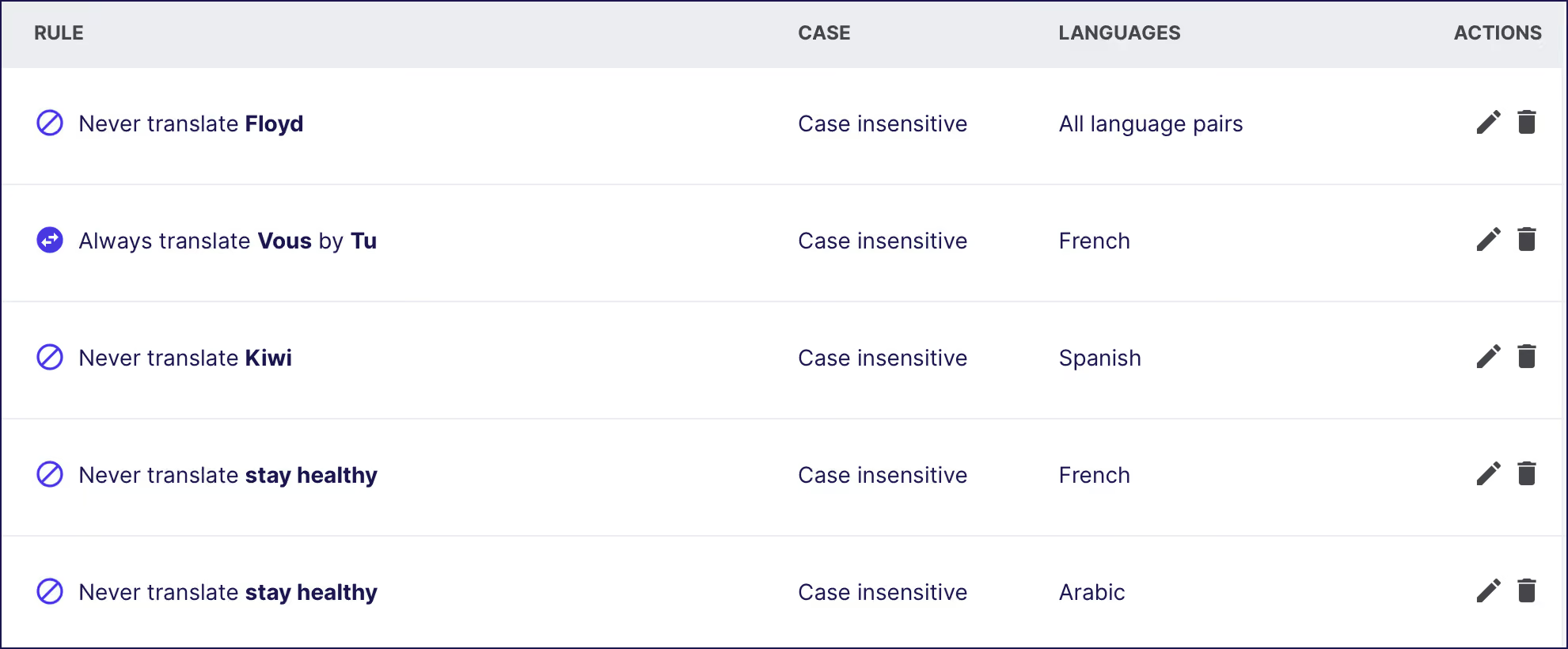
Businesses ready to grow can also sign up for a 14-day free trial on any paid plan, unlocking advanced integrations, team features, unlimited edits, glossary control, and professional translation ordering. Paid plans scale by word count and language, starting at €150/year.
Pros:
Cons:
{{ai-banner}}
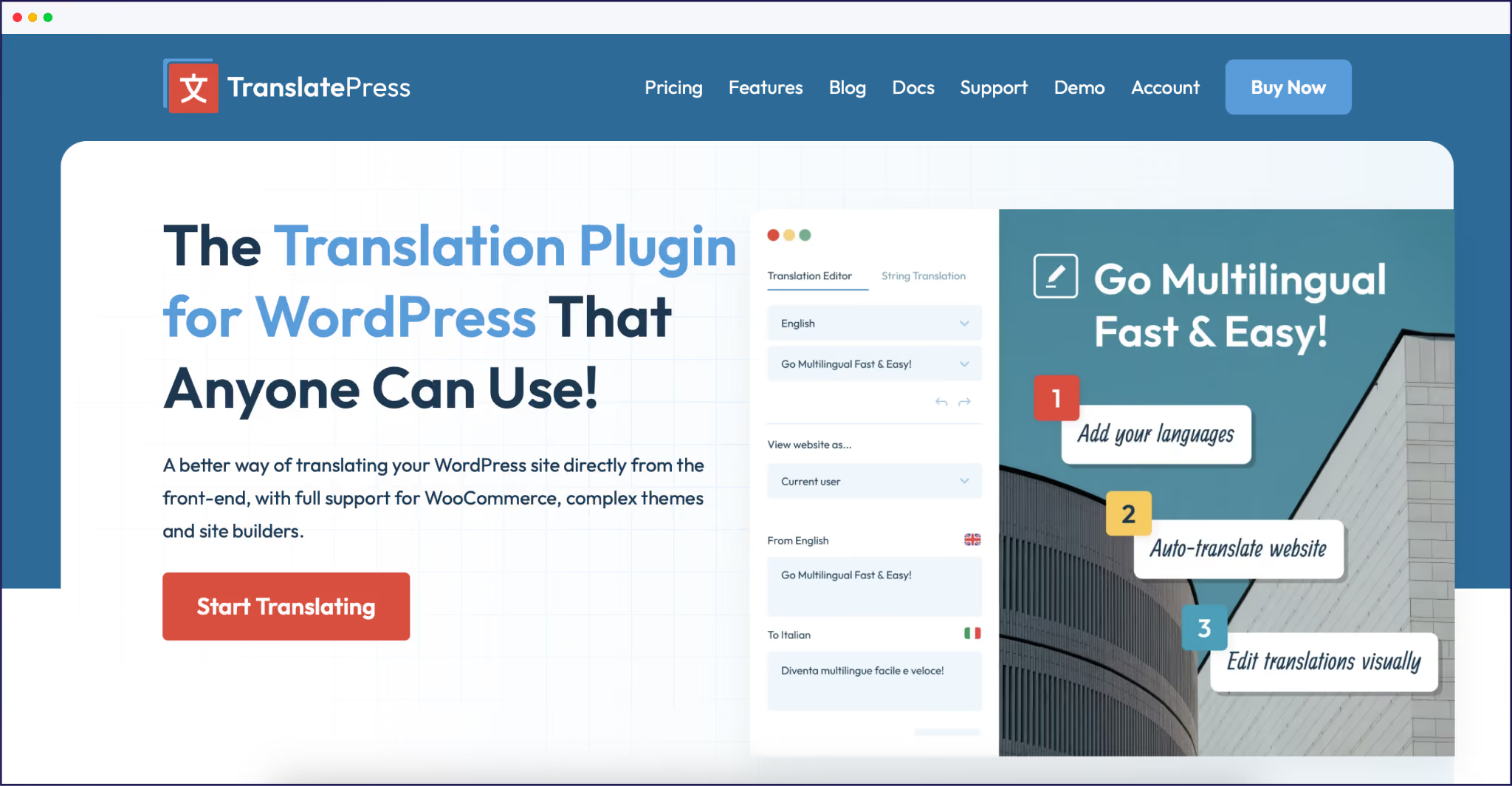
TranslatePress provides a visual editing experience and tight integration across your entire site. TranslatePress supports both automatic and manual methods, so you can machine-translate a site instantly, then hand-tune important details.
WooCommerce shops through TranslatePress include variable products and custom fields. You’ll get unlimited translators (on paid plans), frontend preview, URL/slug/meta translation, and SEO via a free add-on.
Plans start free for one language pair. Pro tiers start at €99/year, scaling to €349 for unlimited sites and higher word quotas.
Pros:
Cons:
For more info, check out our direct Weglot vs TranslatePress comparison.
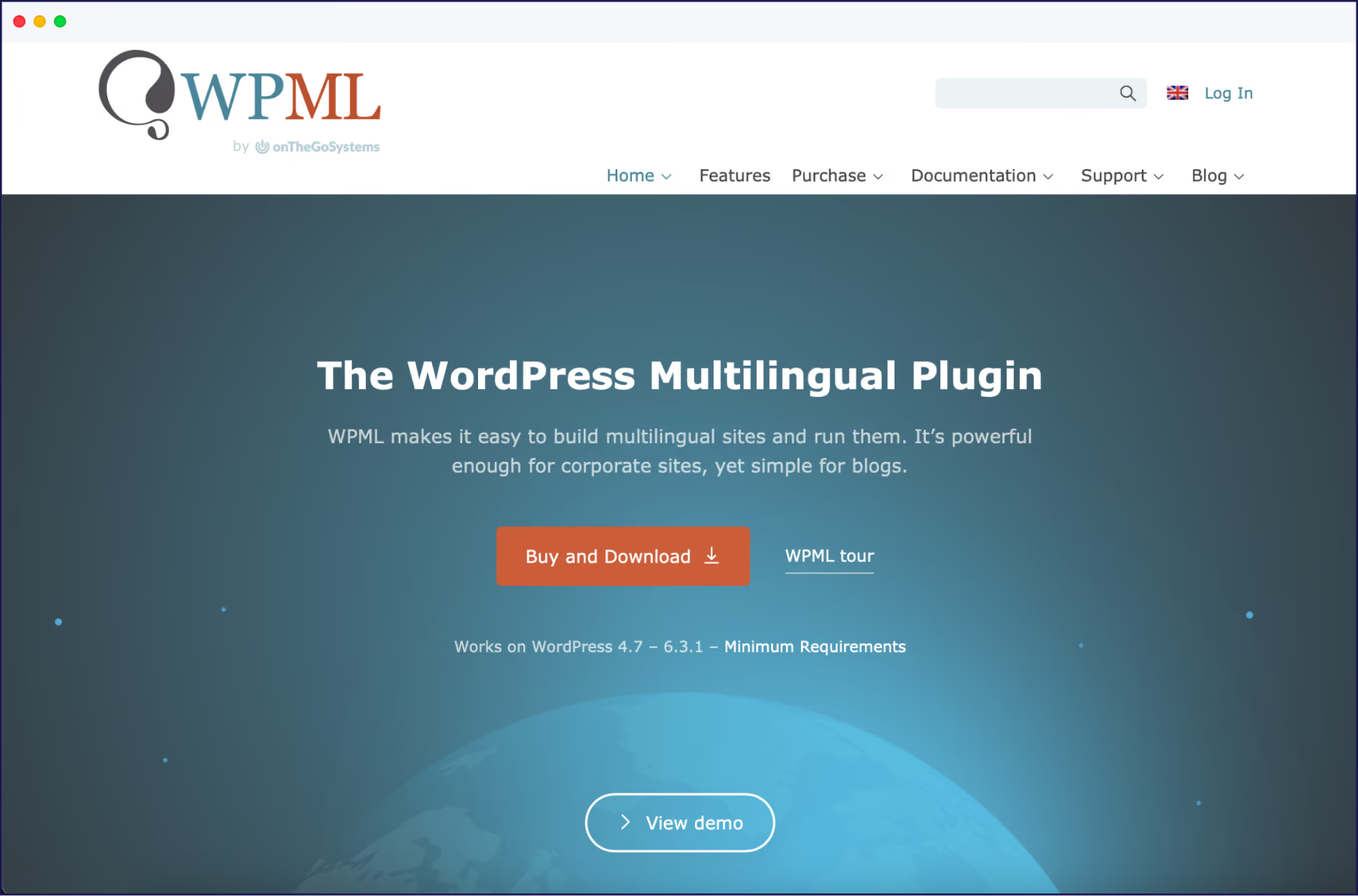
If you need true enterprise workflow controls – content assignment, approval flows, translation teams – WPML can fill the gap. You’ll find WooCommerce integration, CMS-level content support, and REST API hooks for custom setups.
Machine translation is included, and editorial workflows allow you to assign jobs, review, connect to human translation vendors, or use built-in machine translation for bulk jobs.
Price-wise, you’ll need to buy CMS or Agency plans for WooCommerce and advanced SEO. Licenses start at €39/year for basic (blog only), but ecommerce and full-site translation plans require a €99/year package. No free version exists.
Pros:
Cons:
Take a deep dive into WPML with our guide to WPML and other alternatives.
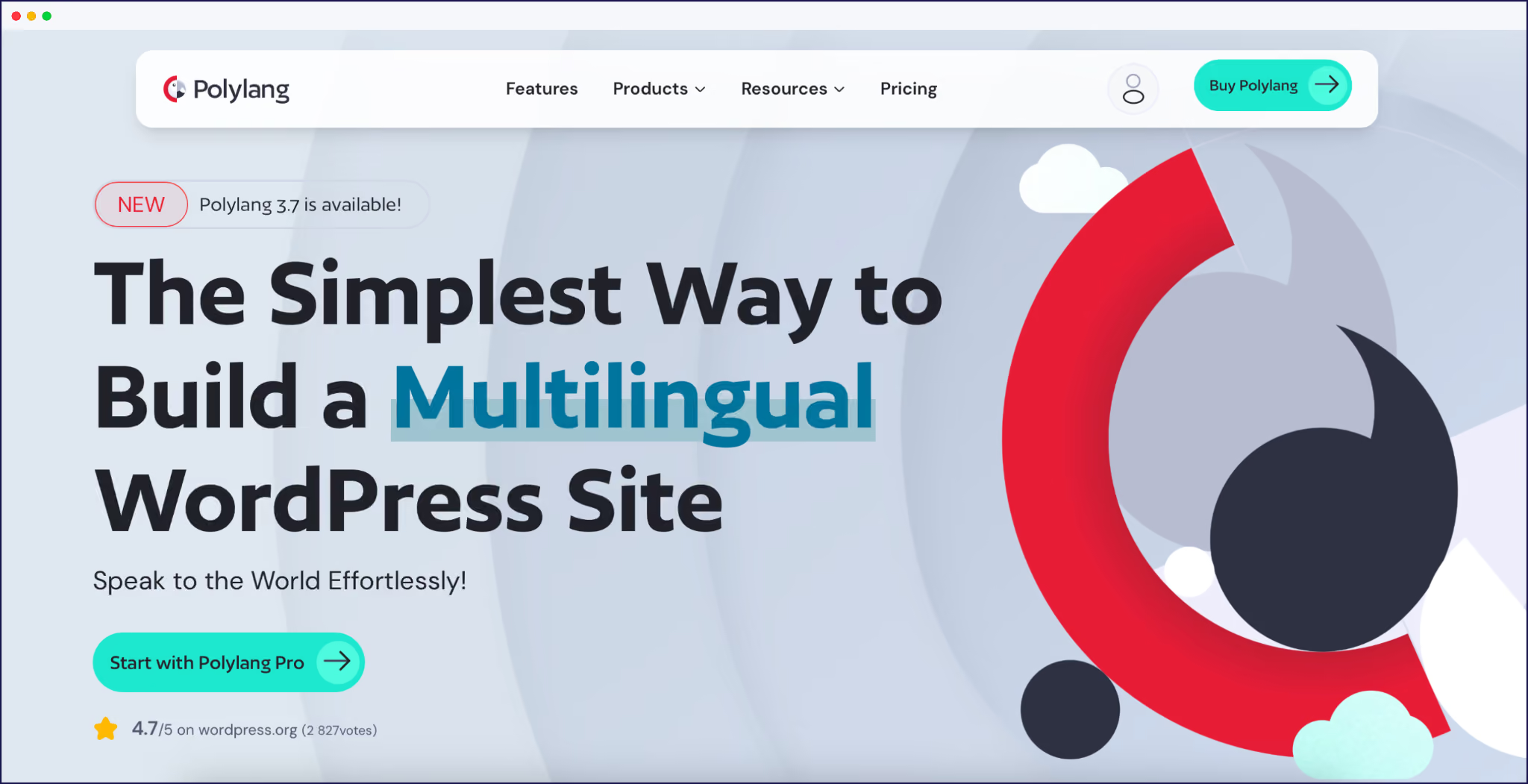
Polylang is a popular choice for those who want a manual, lightweight touch. The core plugin lets you assign translations post by post and works for menus, categories, media, and taxonomies. To automate translations, you’ll need Polylang Pro (for DeepL integration) at €99/year. For a WooCommerce store, you’ll also require the €99/year WooCommerce add-on.
Pros:
Cons:
Find out more with our comparison of Polylang and Weglot.
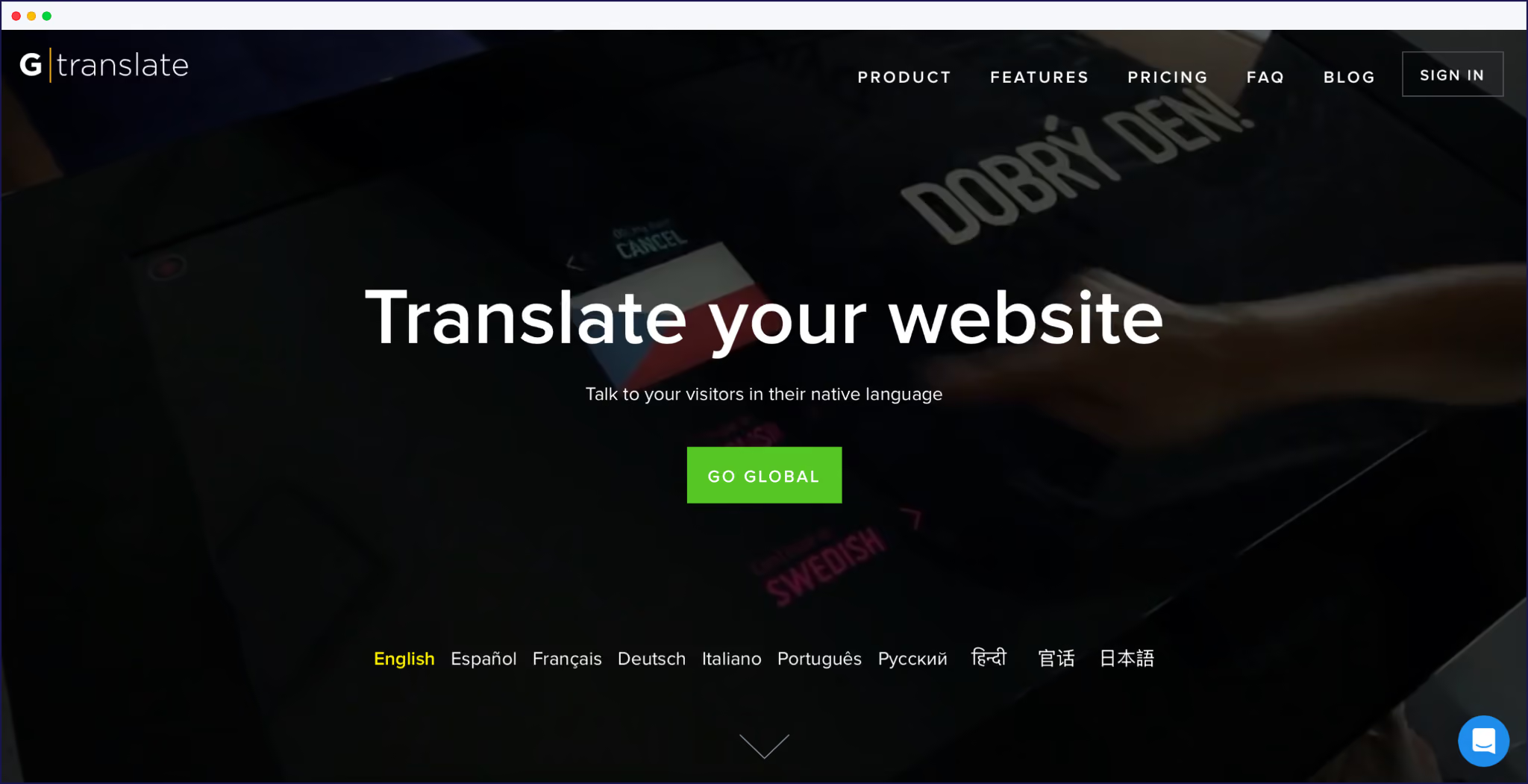
GTranslate delivers proxy-powered instant translation using Google’s engine. You’ll get sitewide translation of everything, including WooCommerce, but can only manually edit translations or have SEO-friendly URLs if you subscribe.
All language pairs are supported. The free plan is unlimited in language count but locked to automatic translation with no frontend SEO links. Paid licenses unlock true multilingual SEO, manual editing, and custom domains (from €85/year).
Pros:
Cons:
Discover more with our guide to GTranslate and like-minded alternatives.
In summary:
{{quote-image-banner}}
What works for one site and business type won’t necessarily work for everyone. Do your work at the research stage to find the solution best suited for your own needs.
Here are best practices and tips for building and maintaining a multilingual WordPress site that doesn’t just make up the numbers!
Start with a site audit and project brief. Identify exactly what needs translation – pages, posts, product descriptions, widgets. Estimate total word count and review plugin compatibility with WooCommerce and other core integrations. Clearly map out which content will be managed manually and which should be automated.
Before installing any translation plugin, create a full backup of your database and files. Use scheduled backups both before and after each phase of the multilingual rollout. This guards against plugin conflicts and accidental data loss.
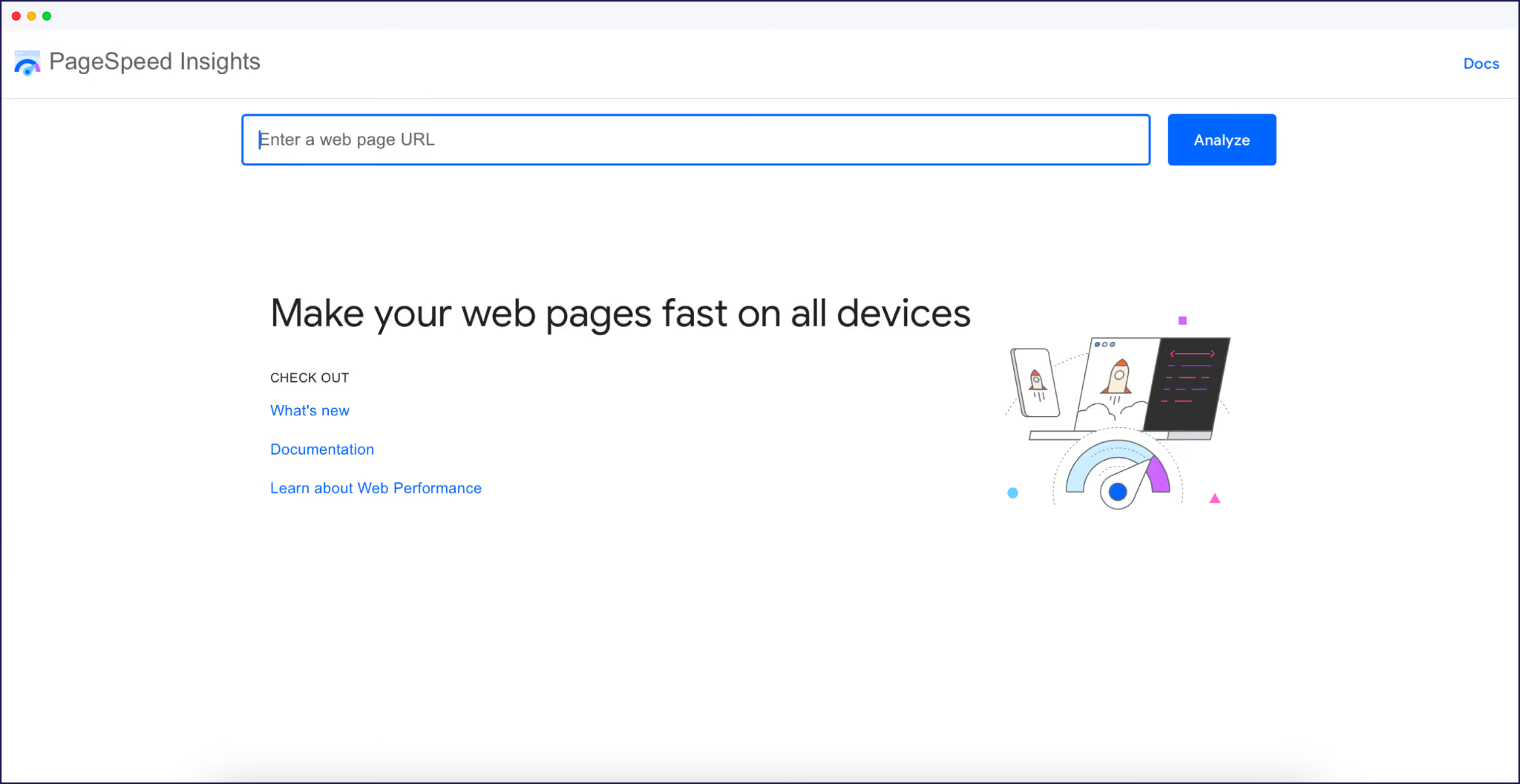
Deploy the plugin to a staging environment first, not live. Translate selected pages and run browser, plugin, and device compatibility checks. Use Google PageSpeed Insights and local testing tools to monitor Core Web Vitals and confirm no performance regressions.
Choose plugins that automate technical SEO for all languages. Confirm support for hreflang tags, translated metadata, sitemaps, and proper canonical URLs. Research keywords for each market and adapt translated metadata for local search intent. Use plugin features or manual overrides to ensure each language version is indexable and optimized for its audience.
Never use URL parameters to set language. Google recommends subdirectories or subdomains for clarity and best indexing. Translate page slugs, meta titles, and alt text to match each language’s keyword strategy. Check that site-wide navigation links update to point to translated pages for a great user experience and better SEO. Remember that the best translation plugins will actually automate all SEO for you.
“To keep your site organized and accurate, it’s worth carrying out a regular audit of your translated site. This will sustain SEO authority, boost international traffic, and keep your multilingual project running smoothly as markets change. You’ll also spot any problems before they grow unwieldy, and ensure you’re using your budget to the max.”
– Eugène Ernoult, Chief Marketing Officer at Weglot
Selecting the right WordPress translation plugin is the first step towards launching a global, multilingual site.
Weglot offers the best option for businesses of all sizes, with a speedy setup, instant, automatic translations, clear SEO automation, a Visual Editor, and pricing plans to suit all budgets. Our cloud-based approach means no more database drama, and compatibility with WooCommerce and page builders comes as standard.
If you’re ready to go global, Weglot scales in line with your needs, so you won’t have to worry about migrations or plugin switches in the future. Sign up for a 14-day free Weglot trial to get started.

We’ll get your first languages live. You decide how far you want to go. Try Weglot for free today.
Trusted by 70,000+ global brands









Weglot is tested and trusted by brands worldwide since 2016. Join them today.


The best way to understand the power of Weglot is to see it for yourself. Test it for free and without any engagement.
A demo website is available in your dashboard if you’re not ready to connect your website yet.


To back up WordPress before installing any plugin, set up a staging site that mirrors production, then export the database and media files. Check your hosting package as a backup may be included, or use a plugin like Updraft Plus, ShieldPRO, or BlogVault to create a full site snapshot. Verify the backup by restoring to a test environment.
Manual translation involves human translators creating content for each language, while automatic translation uses services like Google Translate or DeepL to convert content instantly. This approach can be faster but usually requires post-editing for accuracy and consistency.
Yes, by exporting translations, mapping URL structures, and maintaining 301 redirects during the switch. Plan a staged migration, test mappings in a staging site, and monitor SEO performance to ensure rankings remain stable post-migration.


