

Try Weglot for free




High-quality website translation still means what it did when Weglot launched over a decade ago: being accurate, natural, consistent, and on brand. What’s changed is how teams check for those qualities.
AI assistants like ChatGPT and Claude can refine wording and tone, and catch inconsistent or incorrect terminology. The review part works well, but acting on it manually (copying strings between screens and fixing each one in your Dashboard) takes time away from other important work.
Weglot 2.0 builds on the Weglot you know, with AI translations tailored to your brand and a redesigned translation experience. Weglot MCP cuts out that back-and-forth by connecting your assistant directly to your Weglot projects, so it can review your existing translations and write back only the changes you approve.
This guide shows you how to improve translation quality faster with 5 copy-ready prompts that reduce the manual work needed to turn suggestions into approved updates.
If you review translations regularly, you’ll already be familiar with these criteria. However, they’re worth a quick recap because the rest of this guide builds on them.
Whether your website translation quality assurance is manual or AI-assisted, here’s what to check for:
Some localization teams and service providers formalize review work using translation memory, CAT (computer-assisted translation) tools, automated QA checks, or frameworks like Multidimensional Quality Metrics (MQM), usually inside a translation management system.
But you don’t need that setup to apply these criteria: an AI assistant hooked up to Weglot can help you check all 5.
Connecting Claude, ChatGPT, or another compatible AI tool to Weglot gives it direct access to your translation projects.
Instead of being limited to text you paste in by hand, the assistant can pull up and review your existing translations within a single conversation. Less context switching and fewer trips to the Weglot Dashboard make for faster reviews.
The connection runs through Weglot MCP, which is built on Model Context Protocol (MCP), an open standard that lets AI tools work with data in other apps.
Your assistant does the language review, Weglot 2.0 manages your translations, and MCP carries information between the two. You still decide what gets written back.
This workflow was shaped by feedback from Weglot 2.0 users who already use AI assistants and want translation to fit into the same tools.
Let’s say your German site addresses customers formally (“Sie”) on product pages but informally (“du”) at checkout. With Weglot MCP connected, you could ask Claude to find the informal strings, suggest formal rewrites, and update them all in a single request once you approve.
Setup happens in your AI assistant. While the exact menus depend on your tool and plan (our Help Center guide covers the steps for Claude, ChatGPT, and others), here’s the general process you’ll follow:
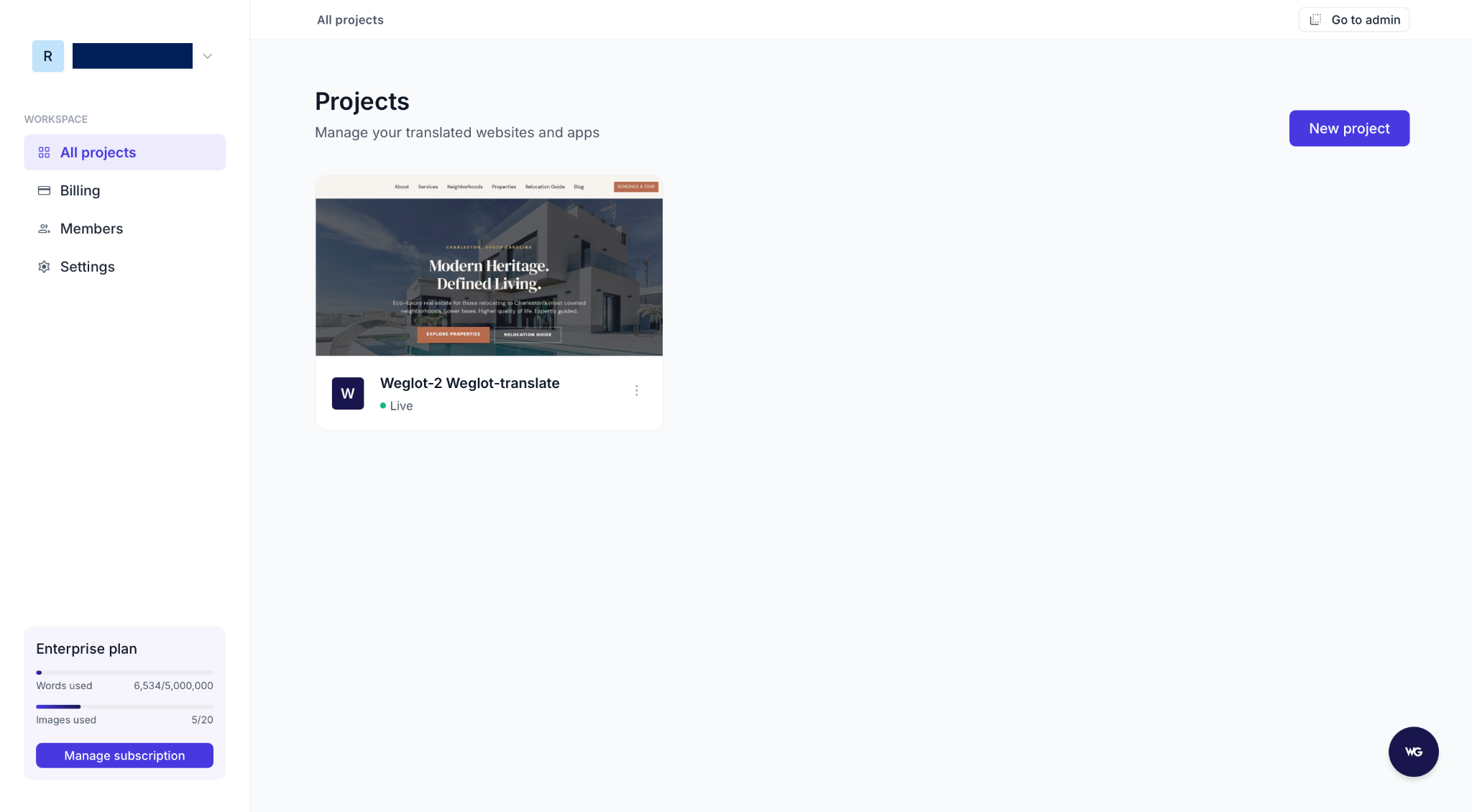
1. Check your plan. You’ll need a Weglot 2.0 account with at least one project, plus an AI assistant plan that supports custom connectors. On team and enterprise-style AI assistant plans, you might need an admin to enable the connector first.
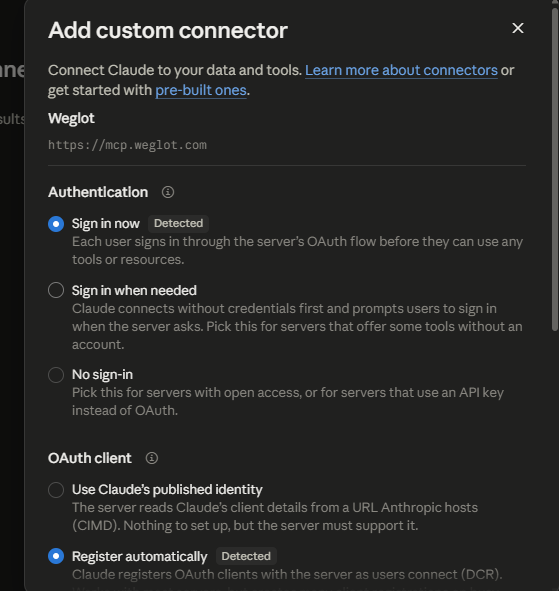
2. Add Weglot as a custom connector. Use https://mcp.weglot.com as the MCP server URL. In ChatGPT, you’ll have to turn Developer Mode on, while Claude shows the option on its “Connectors” page under Settings. Other tools have their own paths.
3. Sign in to Weglot to authorize the connection. Your assistant inherits your existing Weglot permissions, so it can only edit the projects you can access. That’s worth mentioning if you need an admin’s sign-off.
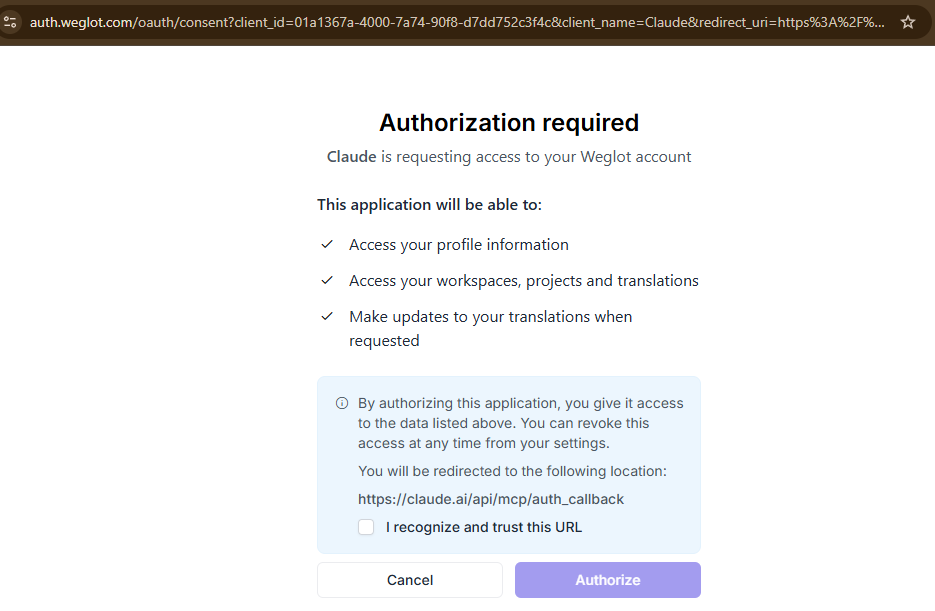
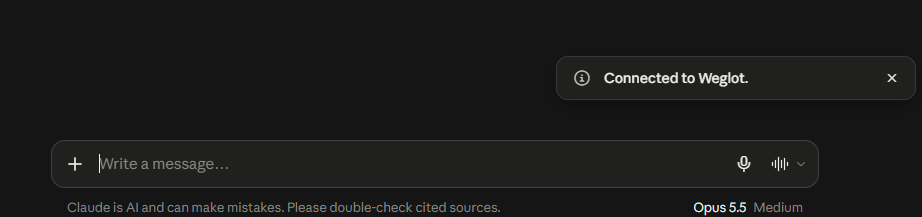
4. Turn Weglot on in your conversation. If your assistant asks you to choose which connectors a chat can use, enable Weglot. If it doesn’t use Weglot when you expect it to, name it in your request (e.g., “Use Weglot to list my projects”).
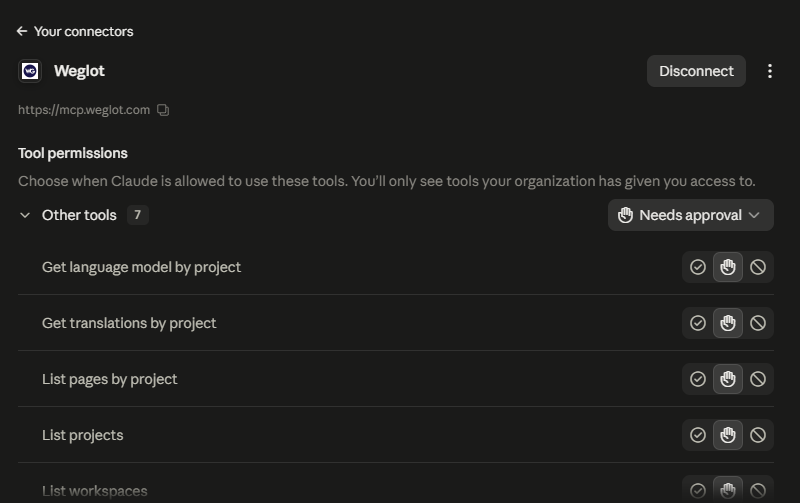
5. Keep approval on for changes. If your AI assistant lets you set permissions for each action, we recommend requiring approval (e.g., “Needs approval” in Claude) for anything that makes changes, like updating translations or settings. That way, you’ll be prompted before the edits are written back.
Once your connection is set up, the quality of the final output depends heavily on what you ask for, which brings us to prompts.
Give any AI vague requests, and you’ll get vague reviews. “Improve my French translations”, for instance, leaves an assistant guessing what to check and how much, if anything, to change. And AI assistants tend to fill gaps with their own assumptions. Not something you’d want to risk for your translations!
Each of the example prompts below cuts down on AI assumptions by spelling out 4 things:
Swap the bracketed text for your own details and tweak the criteria to suit the translations you’re reviewing.
Give the assistant your existing brand guidelines (or style guide) so it can turn them into practical instructions for translation that cover:
Feed this guidance into Weglot so future translations will have a clear brand standard to follow instead of drifting toward safe, generic copy. Your later reviews get a stronger starting point, too.
Start with this prompt:
When you’re happy with the output, you can ask your assistant to update your Brand Voice through MCP. When updating tones, include every tone you want selected, because any you leave out are deselected.
You’ll need to add the Translation Guidelines to Weglot manually, as MCP can’t edit that field.
Ask your AI assistant to check how faithful and natural your existing translations are.
With Weglot MCP connected, your assistant can compare source and target text directly to catch accuracy errors such as changes in meaning and missing details. It can also highlight overly literal translations and phrasing that sounds awkward in the target language.
Try something like this:
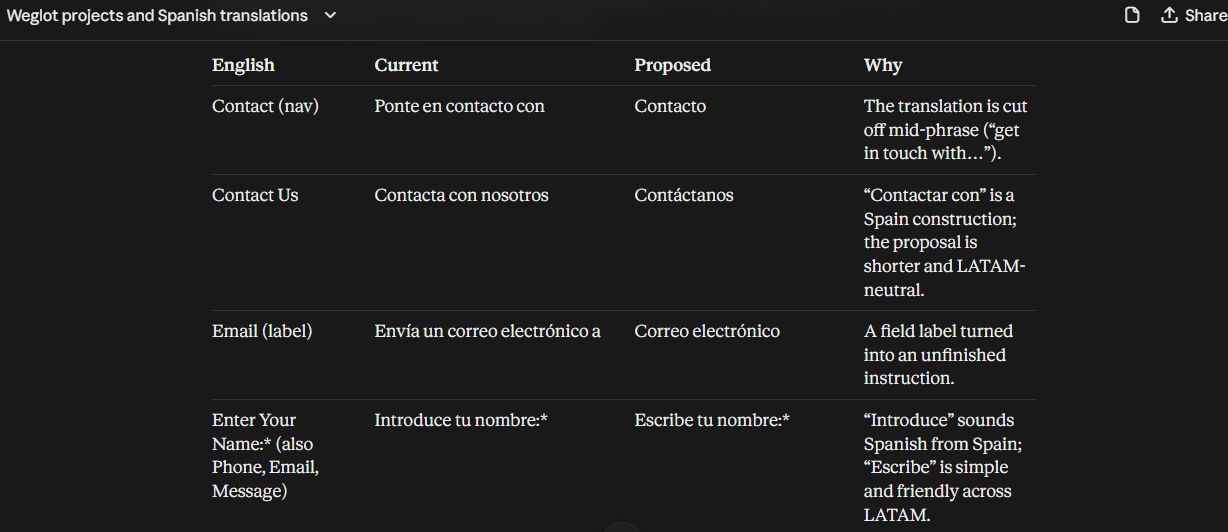
The resulting table will look something like the following:
Treat the results as suggestions, not verdicts. And if you don’t speak the target language, have a native speaker review important or nuanced changes before you approve them. Your assistant’s German might be excellent, but you can’t check it if you don’t read German.
Once the meaning’s right, check that your translations sound like you, because accurate isn’t the same as on-brand.
Give the assistant your tone guidance (e.g., the Brand Voice you refined earlier) and ask it to identify areas where the wording feels off-brand.
Try this prompt:
If you keep seeing the same kind of fix, add it to your Translation Guidelines so future translations can follow that rule from the start. This small fix could save you time and tokens.
Paste your list of approved terms and their translations into the prompt, and ask the assistant to find translations that don’t match.
This is a super quick way to catch terminology drift before it spreads across more translated content. Take a “Starter” plan that’s become “Débutant” on one French page and “Formule de base” on another. Multiple names for the same offer leave plenty of room for confusion.
Use a prompt like this to spot these kinds of inconsistencies before visitors do:
A term list in your prompt only applies to that conversation. It doesn’t add anything to your approved Glossary in Weglot.
MCP can switch your Glossary on or off, but adding and editing terms are handled by the Weglot Dashboard. Regular glossary audits are a worthwhile habit, too, because they stop outdated terms from weakening your copy.
Picked the revisions to keep? Now have your assistant write them back to Weglot.
Batch updates save even more time: one request can update multiple strings you’d otherwise edit one by one.
Be precise so the AI doesn’t have to guess. List exactly what should change and tell the assistant what to do when it isn’t sure. For example:
If you’ve kept approvals on, the assistant should ask you to confirm before anything’s written back, so give the list one last look. There’s no dedicated MCP undo action. If you need to revert something, edit it again through your assistant or in the Dashboard.
Every prompt in this guide falls into one of 2 camps. Review prompts ask your assistant to look and suggest, and nothing in Weglot changes. Write prompts tell it to update specific translations. Keep those steps separate to stay in control.
A few habits help:
Weglot MCP does 3 things: gives your assistant access to existing translations, writes approved changes back, and manages selected AI translation settings, like your Brand Voice.
It won’t translate your site on its own or replace the Weglot Dashboard, which you’ll still need for anything MCP doesn’t support.
If something doesn’t work as expected, let our support team know.
With Weglot MCP connected, translation review can, and should, become a regular habit.
Run a quick check whenever new content goes live and feed recurring fixes back into your Translation Guidelines so future translations start stronger.
Already using Weglot 2.0? Connect Weglot MCP to your AI assistant and try one of the review prompts above on a single language pair. Pick a review you’ve been doing by hand, and you’ll quickly see how much back-and-forth it saves.
New to Weglot? Start your 14-day free trial and see how it helps keep your brand consistent across every language and market.

We’ll get your first languages live. You decide how far you want to go. Try Weglot for free today.
Trusted by 110,000+ global brands





Weglot is tested and trusted by brands worldwide since 2016. Join them today.


0 visits from translated pages in the last 90 days.


Weglot MCP is available to all Weglot 2.0 customers. On the AI side, any assistant that supports remote MCP servers can connect.
Weglot MCP gives your AI assistant access to supported parts of your Weglot projects, so it can work with your existing translations, not just text you paste into a chat.
Your assistant can pull up translations for review, write approved revisions back, and update selected settings for future AI translations. For instance, it can update your Brand Voice (website description and tones), and change whether the glossary and reviewed-translations settings are on or off.
Weglot MCP doesn’t replace the Weglot Dashboard. It won’t translate your whole site on its own or edit Translation Guidelines. It can toggle the glossary setting, but adding or editing individual glossary terms still happens in the Dashboard, as does anything else MCP doesn’t support.
It helps to think of MCP as a second way into Weglot for supported translation tasks.
Any assistant that supports remote MCP servers. Our Help Center has step-by-step guides for Claude and ChatGPT, and tools like Cursor connect through a standard configuration. Gemini support depends on its own MCP capabilities.
As for which is best for translation? Results vary by language pair and content type, so test a few prompts on your own translations.
For a translation review prompt, give your assistant the project, target language, scope (like an exact page path), what you want checked, and how you want the results returned. The examples in this guide show what that looks like for a few common tasks.
Then add whatever the job needs, such as tone guidance, approved terminology, or product names to preserve. And be clear about the final step: should the assistant only suggest changes, or apply them too?
Yes. Ask for suggestions and end your prompt with “Do not update any translations yet”. Keeping approvals “on” in your assistant adds a second safeguard.
When you’re ready to apply changes, human review doesn’t have to mean checking every one by hand. Accept those that are clearly right, look closer at anything uncertain or sensitive (or ask a native speaker), and only write back what you’re confident in.
For larger translation workflows, teams may use translation memory (which stores approved source-translation pairs), QA tools, automated checks, and terminology management to ensure term consistency across multiple translators.
Human expertise can add another layer for specialist work: legal translations or technical content may need a human reviewer with domain expertise.